Photo Editor That Works Offline - Install Go Pixer as an App
Install Go Pixer from your browser and keep editing photos without internet. Projects are saved in your browser and as files on your disk. No installer needed.
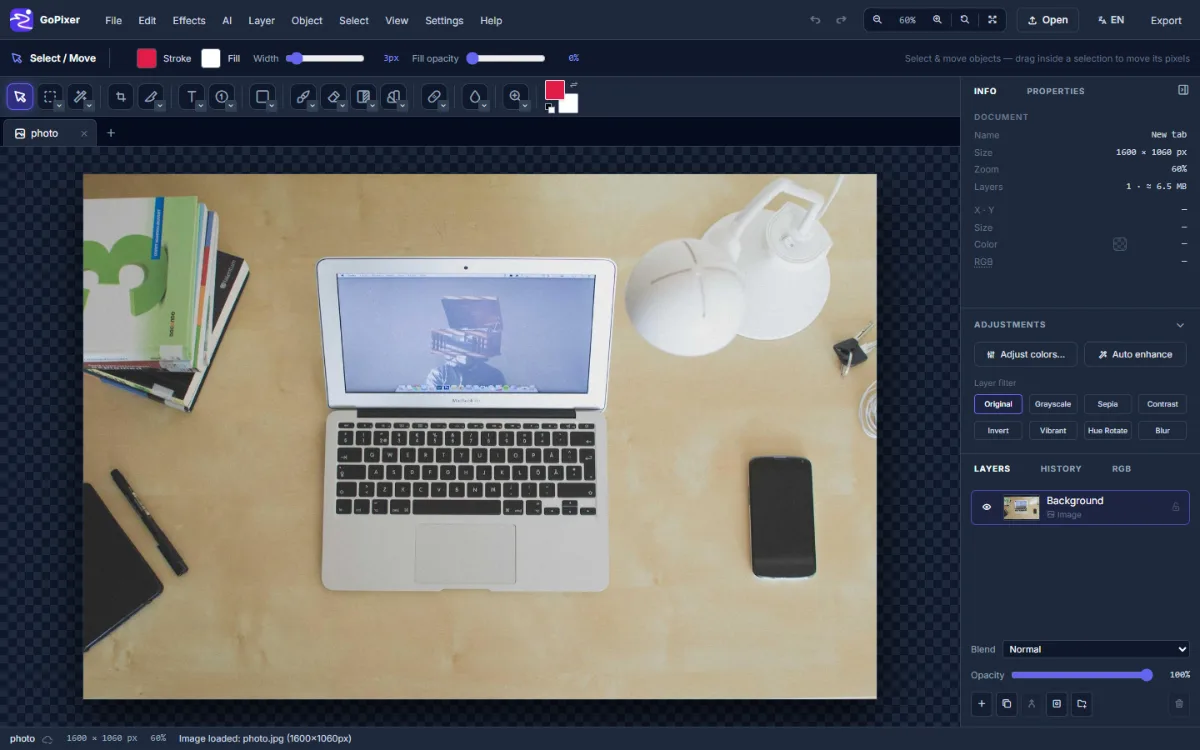
Online photo editors stop the moment the Wi-Fi drops - on a train, on a plane, in a café with a weak signal. Desktop editors work offline but need an installer, an account and a lot of disk space. Go Pixer sits in between: it is a web app you can install from your browser, and once it has been opened it keeps working without an internet connection.
Install it like an app
Open the editor once, then choose Help › Install app… (the item is active when your browser offers installing, as Chrome and Edge do). Go Pixer then opens in its own window with an icon in your Start menu, dock or home screen, without browser tabs around it. On a computer, the installed app can also open pictures from the system's Open with menu. There is no installer to download, and new versions arrive by themselves the next time you are online.
What works without internet
- The editor itself: once opened, your browser keeps the editor's files, so it starts without a connection. Parts loaded later (some tools and exports) are kept after you first use them - use them once while online.
- Opening, editing and exporting pictures: layers, text, shapes, color adjustments, effects, and Export to JPG, PNG, WEBP or PDF.
- AI tools whose model is already downloaded. Before a trip, open AI › AI settings… and use Download now (to use it offline) for the models you need.
- Your work is kept: drafts are saved in the browser and come back when you reopen the editor. File › Save writes a .pixedit project file to your disk (in Chrome and Edge, Ctrl+S then saves into the same file), and File › Open project… opens it again - with every layer and page still editable.
What still needs a connection
- The Template library, signing in and buying a plan. A template you opened while online is an ordinary document, so you can keep editing it offline.
- The first download of each AI model, and Generative fill (an outside service).
- Fonts and interface languages you have never used before (the editor falls back to English until it is online again).
Without a connection, the editor uses the plan it read the last time you were online.
How to try it
- Click Open the Template library in Go Pixer above (while online) and pick a design - or open your own photo.
- Choose Help › Install app… to add Go Pixer to your computer or phone.
- Download the AI models you need in AI › AI settings….
- Switch off Wi-Fi, open the installed app and keep editing; save with File › Save or Export.
Go Pixer vs typical online editors
- Offline: keeps working after the first visit; most online editors need a connection for every step.
- Install: one click from the browser, no installer file and no admin rights - unlike a desktop app.
- Your files: projects live in your browser and in files on your own disk, not in a cloud account you must sign in to.
- Privacy: photos are edited on your device and not uploaded, online or offline.
- Limits: templates, sign-in and the first model downloads need internet; tools you have never opened may need one visit online first.
Related guides
- Make a YouTube thumbnail from a template
- Remove a background - offline once the model is saved
- Open PSD files in the browser
Open it once, install it, and your photo editor is there whether the Wi-Fi is or not.
Frequently asked questions
Can I use Go Pixer without internet?
Yes. After you have opened the editor once, your browser keeps it, so it starts and works offline: opening, editing, saving and exporting pictures, plus the AI tools whose model is already downloaded.
How do I install Go Pixer as an app?
Open the editor and choose Help › Install app… when your browser offers installing (for example Chrome or Edge). It then opens in its own window with its own icon.
Where is my work saved?
Drafts are kept in your browser and restored when you come back. File › Save writes a .pixedit project file to your disk, which File › Open project… opens again.
What does not work offline?
The Template library, signing in, buying a plan, Generative fill and the first download of each AI model need a connection.
Do I need to download an installer?
No. Go Pixer installs from the browser and updates itself the next time you are online.
Try it now - free
Nothing to install, no sign-up needed. Your photos stay on your computer.
Open the Template library in Go PixerMore free guides

Go Pixer vs Photoshop - What a Free Browser Editor Can Do (and What It Can't)
An honest comparison: layers and PSD, Object Selection, Content-Aware Move, Highlights / Shadows / Clarity / Dehaze, lens correction, Perspective Crop, RAW files and AI in a free browser editor.

Remove Background Online Free - No Upload, No Sign-Up
Remove the background of any photo for free, right in your browser. The AI runs on your computer: your photo is never uploaded. Download a transparent PNG.
Crop Image Online - Free, Fast, Square or 16:9
Crop an image online for free: square for Instagram, 16:9 for YouTube, or any size you like. Works in your browser, your photo is never uploaded.

Resize Image Online Free - Exact Pixels, Smaller Files
Resize an image online for free: set the width or height in pixels, keep the aspect ratio, and export a smaller JPG, PNG or WEBP. No upload, no sign-up.