Blur Face Online Free - Hide Faces in Photos with AI
Blur faces in a photo online for free. The AI finds every face and covers it; move or resize each cover. Private by design: your photo is never uploaded.

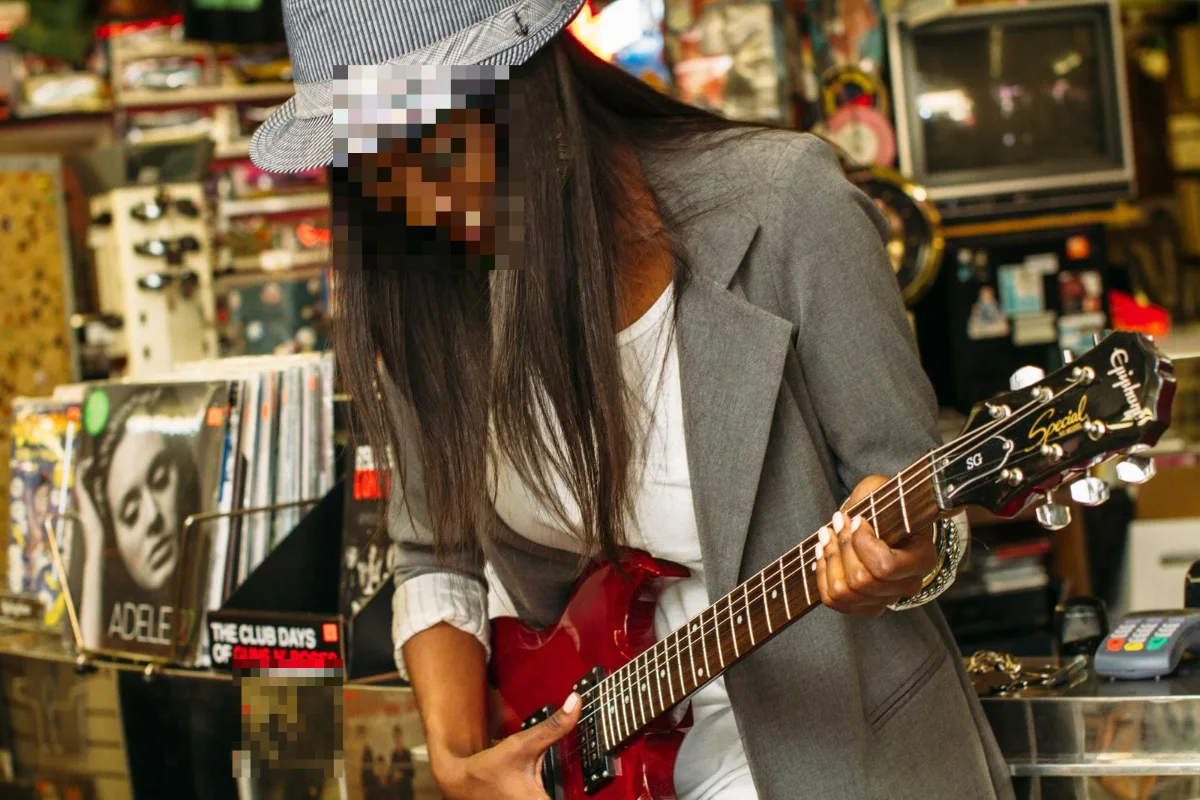
Posting a street photo, a school event or a screenshot with people who did not agree to be shown? Hiding their faces is respectful - and sometimes required by law. Go Pixer lets you blur faces online for free: the AI finds them for you, and because it runs in your browser, the photo you are protecting is never sent anywhere.
How to blur faces in 3 steps
- Click Open the Face blur in Go Pixer above and open your photo.
- Every face found is covered with a pixelated block (later: AI › Blur faces). The status bar tells you how many faces were covered.
- Check the result: each cover is an object you can move, resize or delete. Then click Export.
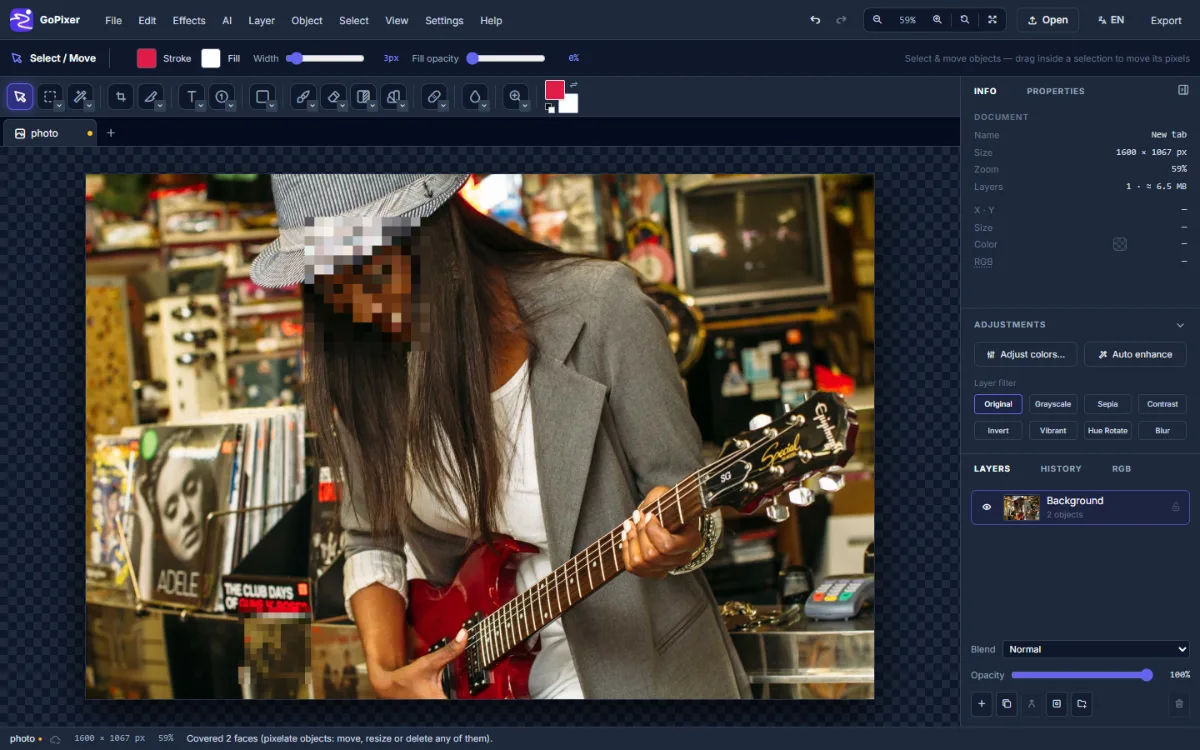
Notice in the example: the AI also covered the face printed on a record sleeve in the background. If you want to keep that one, select its cover and press Delete.
Tips for reliable results
- Zoom in and look at small faces in the background; add a cover by hand if one was missed (draw a shape and fill it).
- Export as a new file - keep your original untouched.
- For documents, also hide names, plates and numbers: AI › Hide sensitive info… finds text you may want to cover.
Why do it in your browser?
The photos that need faces hidden are exactly the ones you should not upload to an unknown server. With Go Pixer the face detection model is downloaded once and runs on your device.
Frequently asked questions
Is face blurring free?
Yes, you can use Blur faces without an account. Some AI tools may be part of Pro depending on the plan settings; the pricing page lists them.
Is the photo uploaded for face detection?
No. The face detection runs in your browser. Only the AI model is downloaded the first time.
A face was not found. What can I do?
Draw a shape over it by hand, or zoom in and run Blur faces again on a cropped part. Very small or turned-away faces are harder to detect.
Can someone undo the blur on my exported image?
No. Once exported, the covered pixels are replaced in the file; the original face is not stored in it.
Try it now - free
Nothing to install, no sign-up needed. Your photos stay on your computer.
Open the Face blur in Go PixerMore free guides
Go Pixer vs Photoshop - What a Free Browser Editor Can Do (and What It Can't)
An honest comparison: layers and PSD, Object Selection, Content-Aware Move, Highlights / Shadows / Clarity / Dehaze, lens correction, Perspective Crop, RAW files and AI in a free browser editor.
Remove Background Online Free - No Upload, No Sign-Up
Remove the background of any photo for free, right in your browser. The AI runs on your computer: your photo is never uploaded. Download a transparent PNG.
Crop Image Online - Free, Fast, Square or 16:9
Crop an image online for free: square for Instagram, 16:9 for YouTube, or any size you like. Works in your browser, your photo is never uploaded.
Resize Image Online Free - Exact Pixels, Smaller Files
Resize an image online for free: set the width or height in pixels, keep the aspect ratio, and export a smaller JPG, PNG or WEBP. No upload, no sign-up.