Go Pixer vs Photoshop - What a Free Browser Editor Can Do (and What It Can't)
An honest comparison: layers and PSD, Object Selection, Content-Aware Move, Highlights / Shadows / Clarity / Dehaze, lens correction, Perspective Crop, RAW files and AI in a free browser editor.
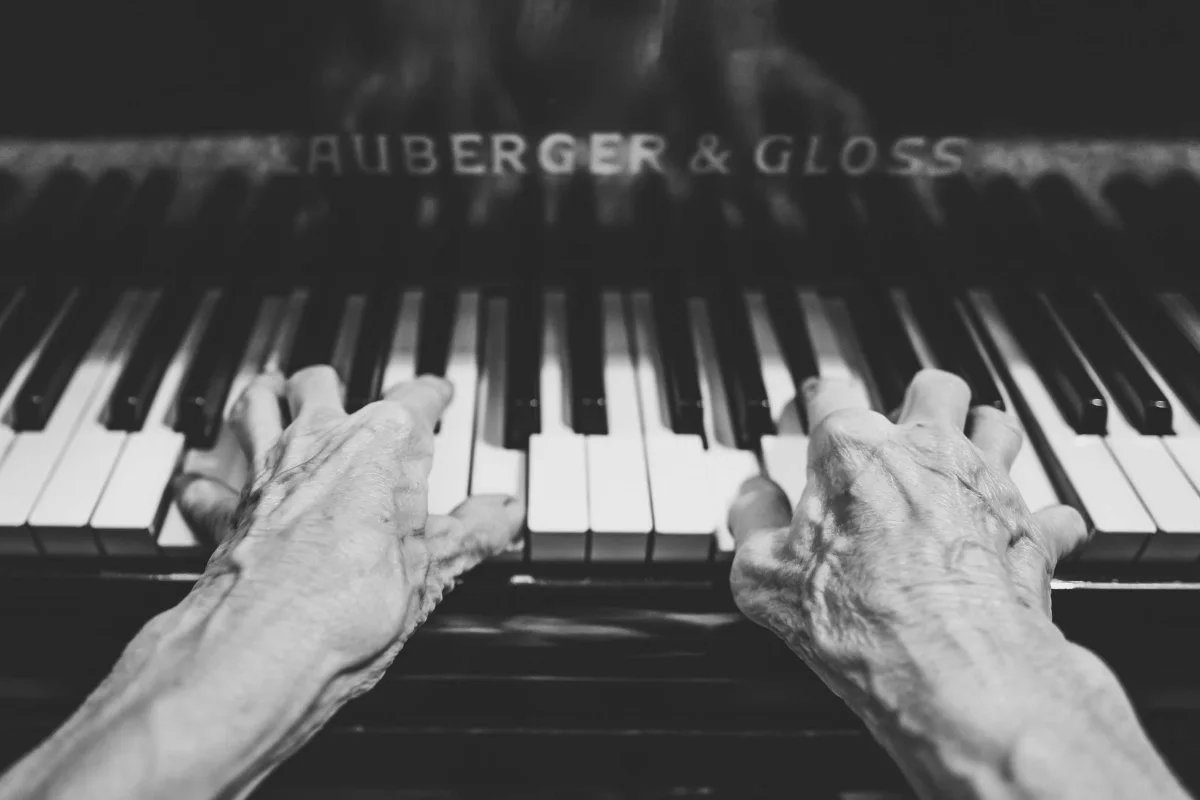
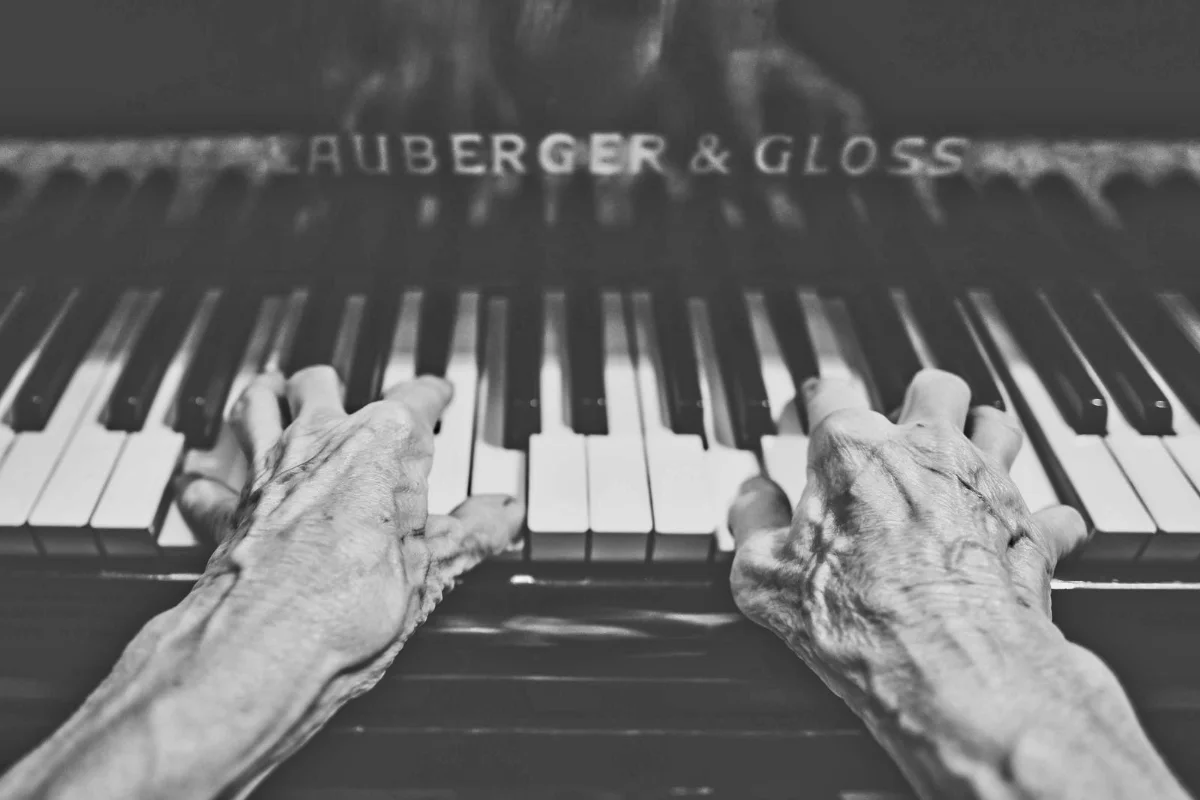
People often expect a browser photo editor to stop at crop, filters and text. Photoshop is still the industry standard, but many of the tools people buy it for now work in Go Pixer too - free to start, in any modern browser, with nothing to install and your pictures kept on your computer. Here is an honest comparison: what Go Pixer already has, what it added recently, and what Photoshop still does better.
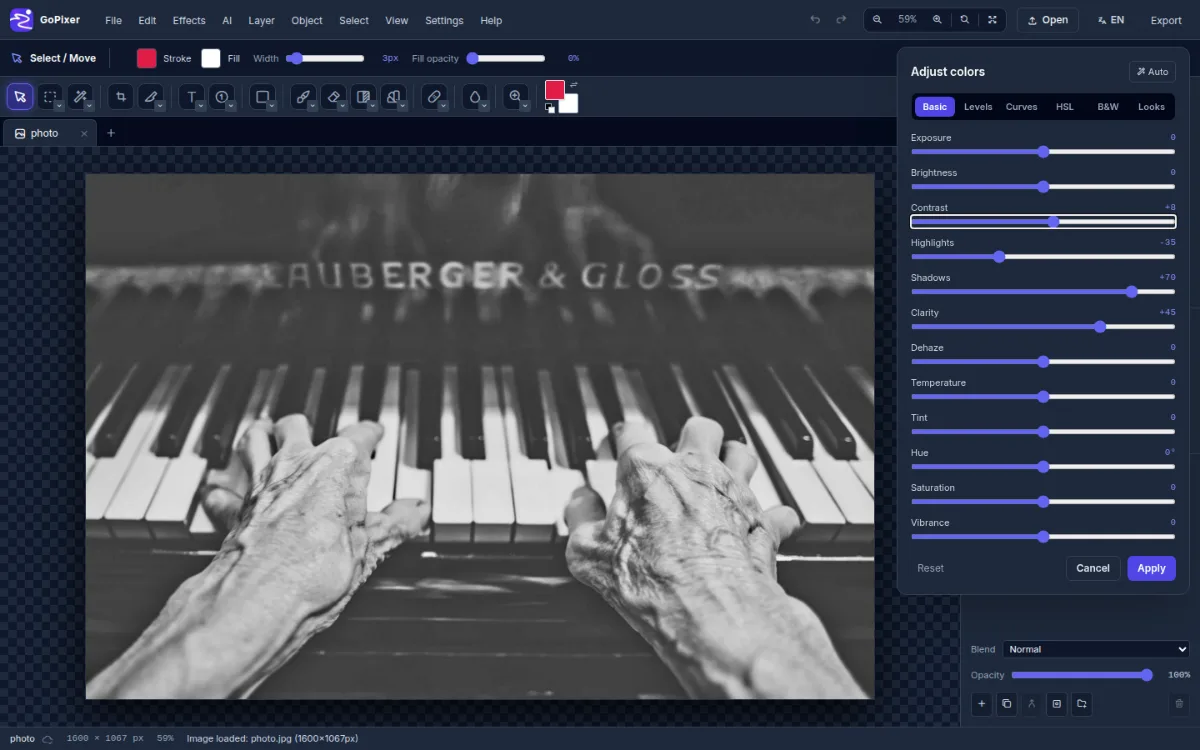
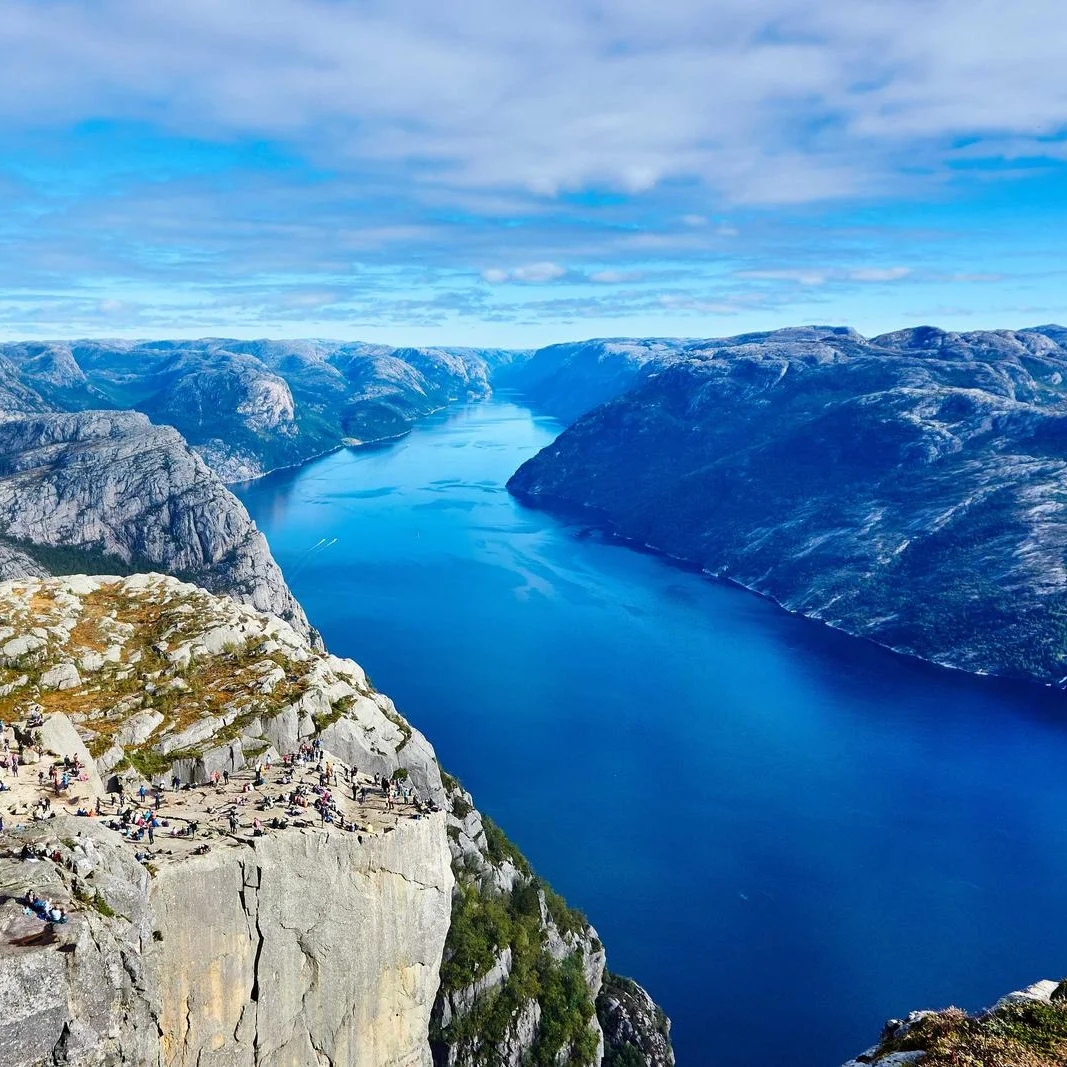
The picture above is one photo and three sliders of Edit › Adjust colors…: Shadows up, Highlights down, a little Clarity.
Tools many people think only Photoshop has
- Layers and PSD files: layer masks, 16 blend modes, groups, adjustment layers, clipping masks and layer styles. Open a .psd with its layers and save back with File › Download as PSD.
- Smart selections: Magic Wand, Color Range, Magnetic Select, AI › Select subject and Select › Refine edge… for hair. New: AI › Object selection (drag a box) - draw a box around an object and it is selected, like Photoshop's Object Selection tool.
- Retouching: the Spot healing brush, Clone Stamp, AI › Remove object, Liquify and AI › Portrait retouch…. New: Content-Aware Move (in the Retouch tools, or AI › Content-aware move) - draw around something and drag it: it blends in at the new place and AI fills where it was. Extend mode places a copy instead.
- Color like Camera Raw: Edit › Adjust colors… has Exposure and Contrast and, new, Highlights, Shadows, Clarity and Dehaze - plus Levels, Curves, HSL per color, Black & White and .cube LUT looks. All of it also works as an adjustment layer.
- Lens correction (new): Edit › Lens correction… straightens barrel or pincushion distortion, removes red / cyan and blue / yellow fringes, fixes the vignette, and stands the converging lines of a building upright with vertical and horizontal perspective.
- Perspective Crop (new): the tool next to Crop (C), or Edit › Perspective crop: a document, a receipt or a sign photographed at an angle becomes a straight rectangle. Go Pixer finds the sheet and puts the four corners on it; adjust them if needed and press Enter.
- Generative AI: AI › Generative fill… draws what you type into a selection (with your own OpenAI or Google Gemini API key), Expand with AI… extends the picture, and Upscale ×2 / ×4, Colorize, Relight, Lens blur and Replace sky run in your browser.
- Brushes: 41 brushes with flow, hardness, jitter and textures, Smudge, symmetry painting - and Photoshop .abr brushes can be imported.
- Actions and batch: File › Actions… records your steps and plays them back; File › Batch process… resizes, converts, watermarks and runs an action on many photos at once.
- Camera RAW files (new): CR2, CR3, NEF, ARW, DNG, RAF, ORF, RW2 and more open directly: Go Pixer opens the full-size picture the camera stored inside the file, and File › Batch process… turns a whole folder of RAW files into JPGs.
What Photoshop still does better
- Real RAW development: Camera Raw works on the sensor data itself (white balance, blown highlights). Go Pixer opens the camera's own JPEG inside the RAW file - fine for most edits, but some cameras (Sony, for example) store only a small one.
- Print and high-end color: CMYK, 16 and 32 bits per channel and PSB files are Photoshop's; Go Pixer works in RGB, 8 bits per channel.
- Generative fill built in: Photoshop includes Adobe Firefly; in Go Pixer you bring your own OpenAI or Gemini key.
- Painting, video and 3D: the Mixer Brush, video timelines and 3D layers are not in Go Pixer (Adobe has removed 3D from Photoshop too).
- PSD text: text layers of a PSD open editable in Go Pixer, but are saved to PSD as images.
Price, privacy and installation
Go Pixer is free to start, with no ads, no sign-up and no watermark; Pro raises the limits and adds a few tools - the pricing page lists each plan. Photos are opened and edited in your browser: only Generative fill sends the selected part to the service you choose. It runs on Windows, macOS, Linux and ChromeOS, and can be installed as an app that also works offline (Help › Install app…). Photoshop is a subscription and a large desktop install.
Which one should you use?
- Go Pixer if you edit photos, social posts, thumbnails and documents, need to open a PSD someone sent you without a subscription, or work on a computer where you can't install software.
- Photoshop if you prepare files for professional CMYK print, develop RAW files at their very best, or need its painting and video tools.
Try the new tools
- Click Open Go Pixer - free above and open a photo.
- Edit › Adjust colors…: move Shadows up and Highlights down, then add a little Clarity.
- AI › Content-aware move: draw around an object, then drag it somewhere else.
- AI › Object selection (drag a box): drag a box around an object - it is selected, ready to cut out, remove or adjust.
- Photograph a page at an angle, open it and choose Edit › Perspective crop, then press Enter.
Related guides
- Layers, masks and PSD files in the browser
- How to open and edit a PSD without Photoshop
- Remove an object from a photo with AI
- Batch edit photos with actions
Go Pixer will not replace Photoshop for every job - but for most everyday photo editing and design, it may be all you need.
Frequently asked questions
Is Go Pixer a free alternative to Photoshop?
For most photo editing and design, yes: layers and masks, PSD open and save, smart selections, retouching, Camera Raw style color, lens correction and AI tools, free to start in the browser. It is not meant for CMYK print, full RAW development or 3D.
Does Go Pixer have Content-Aware Move and Object Selection?
Yes. Content-Aware Move is in the Retouch tools (and AI › Content-aware move): drag a selected object and AI fills where it was. AI › Object selection (drag a box) selects the object inside the box you draw.
Can I adjust highlights, shadows, clarity and dehaze?
Yes, in Edit › Adjust colors…, together with Exposure, Levels, Curves and HSL. They also work as adjustment layers.
Can Go Pixer open RAW photos?
Yes: CR2, CR3, NEF, ARW, DNG, RAF, ORF, RW2 and more open as the full-size picture the camera stored inside the file, also in Batch process (a folder of RAW files to JPGs). The sensor data itself is not developed (white balance cannot be changed as in Camera Raw).
Can I straighten a photo of a document or a sign?
Yes. Edit › Perspective crop finds the sheet and puts four corners on it; adjust them and press Enter - the page becomes a straight rectangle. The size is measured from the corners, or typed in (for example A4).
Are my photos uploaded?
No. Photos are opened and edited in your browser, AI tools included. Only Generative fill sends the selected part to the service whose API key you entered.
Try it now - free
Nothing to install, no sign-up needed. Your photos stay on your computer.
Open Go Pixer - freeMore free guides
Remove Background Online Free - No Upload, No Sign-Up
Remove the background of any photo for free, right in your browser. The AI runs on your computer: your photo is never uploaded. Download a transparent PNG.
Crop Image Online - Free, Fast, Square or 16:9
Crop an image online for free: square for Instagram, 16:9 for YouTube, or any size you like. Works in your browser, your photo is never uploaded.
Resize Image Online Free - Exact Pixels, Smaller Files
Resize an image online for free: set the width or height in pixels, keep the aspect ratio, and export a smaller JPG, PNG or WEBP. No upload, no sign-up.

Add Text to Photo Online Free - 110 Ready-Made Text Styles
Add text to a photo online for free: 277 Google fonts, gradient, outline, 3D and neon text styles you can edit. In your browser, no upload, no watermark.