Batch Edit Photos Online - Resize, Convert, Watermark and Rename at Once
Resize, convert, compress, watermark and rename many photos at once in your browser, then download one ZIP. Record Actions and replay them. Nothing is uploaded.
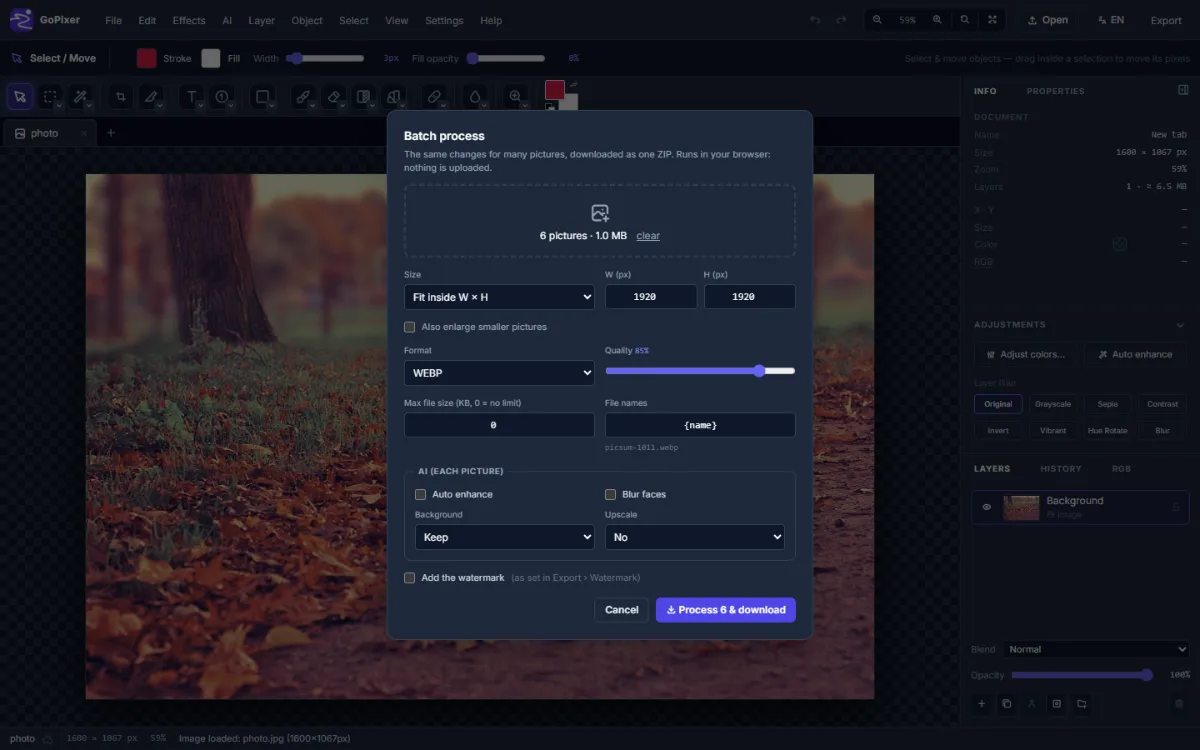
Forty product photos to shrink for a shop, a folder of event pictures to watermark, a batch of PNGs to turn into lighter WEBPs: doing them one by one takes an afternoon. Many online tools that do it in bulk ask you to upload the whole folder first, then wait for a download link. Go Pixer does batch editing in your browser: the pictures are processed on your device, one after the other, and you get a single ZIP.
File › Batch process…: one dialog for the whole folder
Drop the pictures into the dialog (or click to choose them) and set what should happen to each one:
- Size: Keep size, Fit inside W × H, By width, By height, Percent, or Exactly W × H (crop to fill) - with Smart crop to keep the faces or the subject in the frame instead of cutting around the center. Smaller pictures are only enlarged if you tick Also enlarge smaller pictures.
- Format: JPG, PNG, WEBP, or Keep each picture's format; set the Quality and a Max file size in KB for upload forms with a size limit.
- Watermark: Add the watermark puts the text or logo you set up in Export › Watermark on every picture.
- File names: a pattern such as
shop-{n}or{name}-small-{name}is the original name,{n}gives 01, 02… - Auto enhance, and AI steps for each picture: Remove background, Remove background (people), Blur faces, Upscale.
- Action: play one of your recorded Actions on each picture first.
Everything is downloaded as one ZIP (or as the file itself when there is only one picture).
Actions: record once, replay on any photo
File › Actions… works like a macro recorder. Name a new action, press Record, edit a picture - Image size, rotate, flip, straighten, color adjustments, filters, an adjustment layer, AI steps such as Remove background or Upscale - then press Stop. Play it with Play on the open picture, or choose it in Batch process to run it on a whole folder. Sizes are recorded relative to the picture, so an action suits photos of other sizes. Brush strokes and selections drawn by hand are not recorded (AI selections such as Select subject are). Actions are kept in your browser; Export (.json) and Import an action (.json)… share them with a colleague or another computer.
Plans, honestly
- On the Free plan, a batch takes up to 10 pictures; Pro raises the limit. Resizing, converting, compressing, watermarking and renaming are in the Free plan.
- The AI steps in Batch process (including Smart crop) and recording Actions are currently Pro tools; playing an action is in the Free plan. The pricing page lists what each plan has.
- AI steps run on your device one picture at a time, so a large batch with AI takes longer, and the models download the first time.
How to try it
- Click Open the Image resizer in Go Pixer above, then choose File › Batch process….
- Drop a few photos, pick Fit inside W × H (for example 1920 × 1920) and WEBP.
- Type a file name pattern such as
{name}-weband start: a ZIP is downloaded. - Next time, record your usual edits in File › Actions… and pick that action in the batch.
Go Pixer vs typical online batch tools
- Upload: none - the pictures are processed in your browser; many bulk tools upload the whole folder to a server first.
- One dialog: size, format, quality, file size, watermark, file names and AI steps together, instead of one tool per task.
- Actions: your own recorded steps replay on each picture, and can be shared as a .json file.
- No sign-up, no watermark of ours on the results - only yours, if you add one.
- Limits: 10 pictures per batch on Free, and AI steps are slower on an older device than on a powerful server.
Related guides
Set it once, drop the folder, get the ZIP - and keep the originals on your own computer.
Frequently asked questions
How do I batch resize photos online?
Open Go Pixer, choose File › Batch process…, drop your pictures, pick a size (for example Fit inside W × H) and a format, then start. You get one ZIP.
Are my photos uploaded for batch processing?
No. Batch process runs in your browser on your device; the pictures are never uploaded.
How many photos can I process at once?
Up to 10 per batch on the Free plan. Pro raises the limit; the pricing page lists it.
Can I add a watermark to many photos?
Yes. Set up a text or logo watermark in Export › Watermark, then tick Add the watermark in Batch process.
What are Actions?
Recorded steps (File › Actions…) that you can play on the open picture or on every picture of a batch. Recording is a Pro tool; playing an action is in the Free plan.
Try it now - free
Nothing to install, no sign-up needed. Your photos stay on your computer.
Open the Image resizer in Go PixerMore free guides
Go Pixer vs Photoshop - What a Free Browser Editor Can Do (and What It Can't)
An honest comparison: layers and PSD, Object Selection, Content-Aware Move, Highlights / Shadows / Clarity / Dehaze, lens correction, Perspective Crop, RAW files and AI in a free browser editor.
Remove Background Online Free - No Upload, No Sign-Up
Remove the background of any photo for free, right in your browser. The AI runs on your computer: your photo is never uploaded. Download a transparent PNG.
Crop Image Online - Free, Fast, Square or 16:9
Crop an image online for free: square for Instagram, 16:9 for YouTube, or any size you like. Works in your browser, your photo is never uploaded.

Add Text to Photo Online Free - 110 Ready-Made Text Styles
Add text to a photo online for free: 277 Google fonts, gradient, outline, 3D and neon text styles you can edit. In your browser, no upload, no watermark.