Resize Image Online Free - Exact Pixels, Smaller Files
Resize an image online for free: set the width or height in pixels, keep the aspect ratio, and export a smaller JPG, PNG or WEBP. No upload, no sign-up.
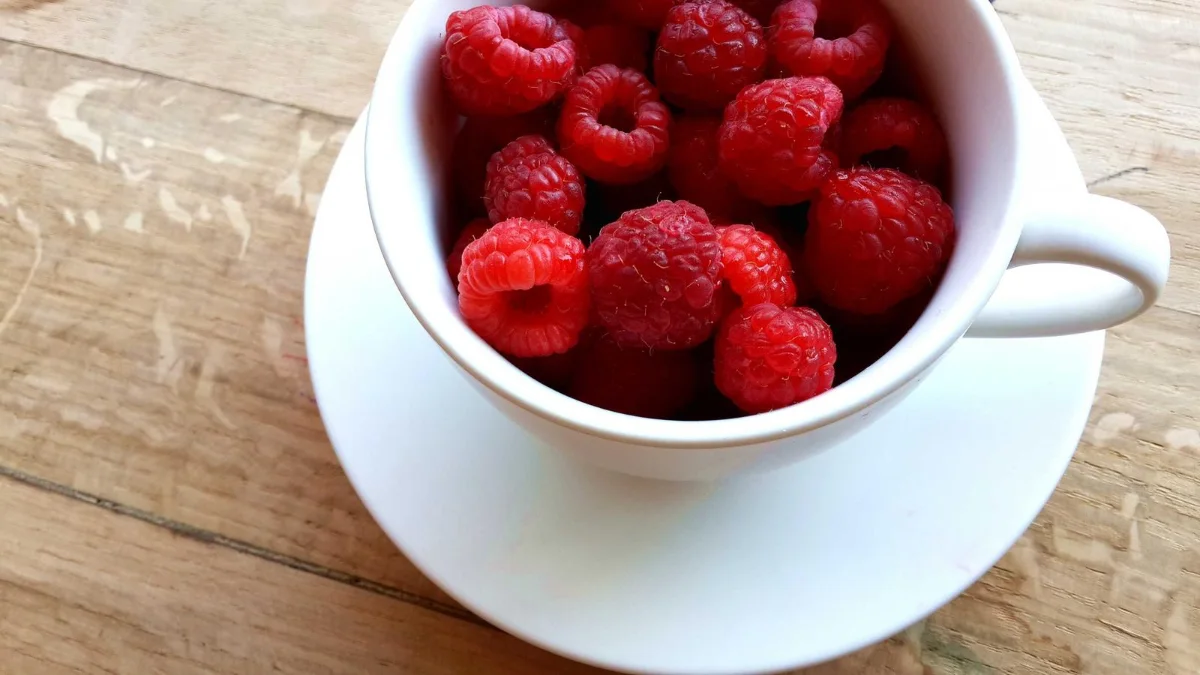
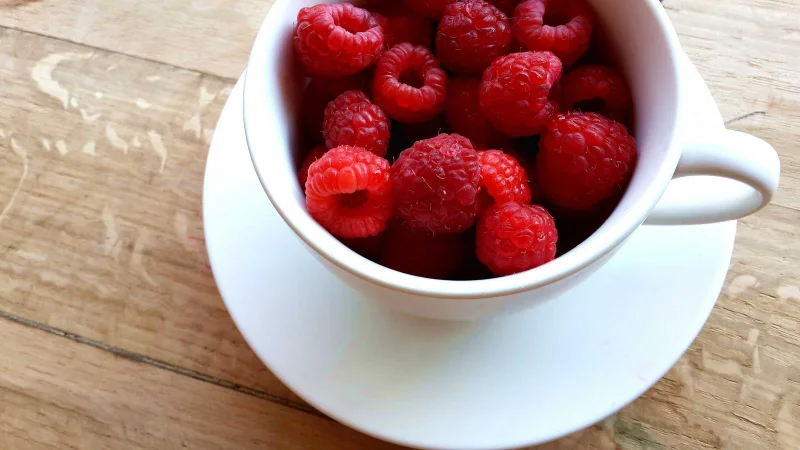
A photo straight from a phone is often 4000 pixels wide and several megabytes - too big for a website, an email or a form that only accepts small files. Go Pixer lets you resize an image online for free: type the size you need, keep the proportions, and download a lighter file. Everything happens in your browser.
How to resize an image in 3 steps
- Click Open the Image resizer in Go Pixer above and open your photo. The Image size window opens (later: Edit › Image size…).
- Type the new Width or Height in pixels. With Keep aspect ratio ticked, the other side follows so the photo is not stretched. Click Resize.
- Click Export, choose JPG, PNG or WEBP and the quality, then download.
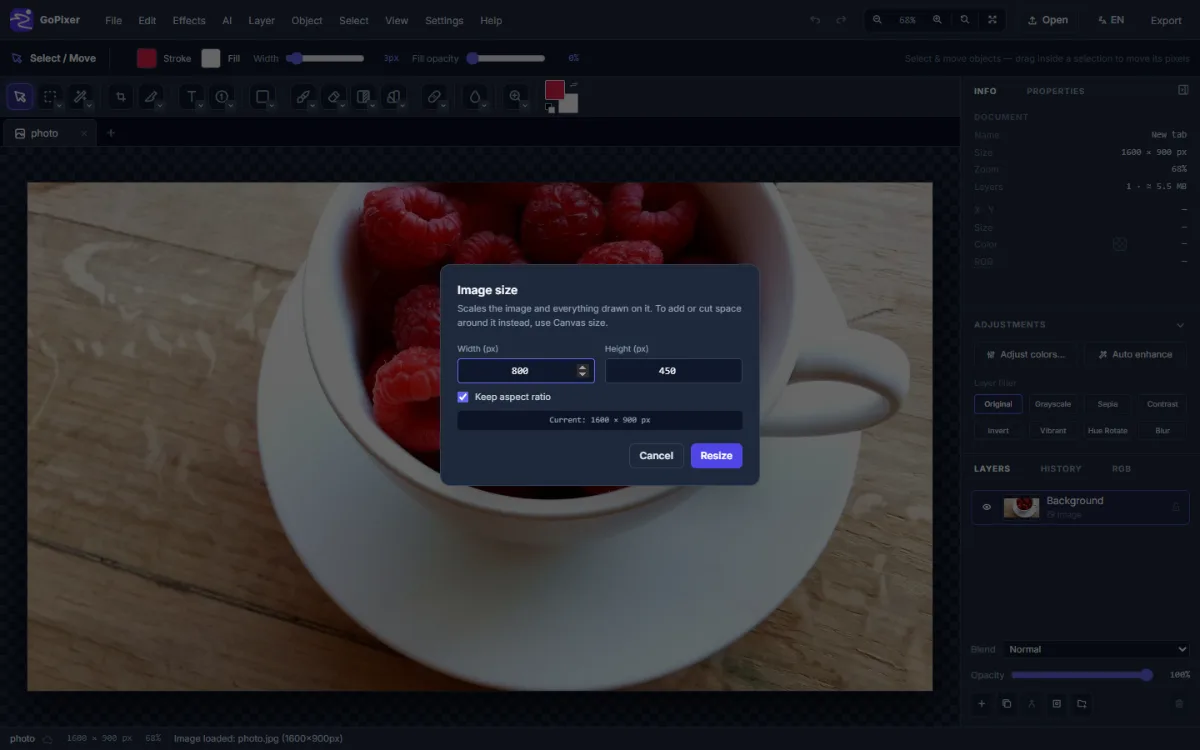
In the example above, a 1600 × 900 px photo becomes 800 × 450 px - a quarter of the pixels, and a much smaller file, while it still looks sharp on screen.
Make the file smaller without changing its size
- In Export, lower the quality of JPG or WEBP: 80% is usually invisible to the eye.
- WEBP files are often smaller than JPG at the same quality.
- Need a file under a limit (for example 2 MB)? Set Max file size in Export.
- Many photos? File › Batch process… resizes a whole set at once.
Resize vs. crop
Resizing scales the whole picture; cropping cuts parts away. To change the shape (for example to a square), crop first, then resize.
Frequently asked questions
Is the image resizer free?
Yes. Resizing and exporting are free, without sign-up. The free plan exports images up to 4096 px on the long side.
Will my photo look stretched?
Not if Keep aspect ratio is ticked: the height follows the width (and the other way around).
Can I make an image bigger?
Yes, but plain enlarging makes it blurry. For bigger photos with detail, use the AI upscaler (AI › Upscale ×2 or ×4).
Is my image uploaded?
No. Go Pixer resizes the image in your browser; it never leaves your device.
Try it now - free
Nothing to install, no sign-up needed. Your photos stay on your computer.
Open the Image resizer in Go PixerMore free guides

Go Pixer vs Photoshop - What a Free Browser Editor Can Do (and What It Can't)
An honest comparison: layers and PSD, Object Selection, Content-Aware Move, Highlights / Shadows / Clarity / Dehaze, lens correction, Perspective Crop, RAW files and AI in a free browser editor.

Remove Background Online Free - No Upload, No Sign-Up
Remove the background of any photo for free, right in your browser. The AI runs on your computer: your photo is never uploaded. Download a transparent PNG.
Crop Image Online - Free, Fast, Square or 16:9
Crop an image online for free: square for Instagram, 16:9 for YouTube, or any size you like. Works in your browser, your photo is never uploaded.

Add Text to Photo Online Free - 110 Ready-Made Text Styles
Add text to a photo online for free: 277 Google fonts, gradient, outline, 3D and neon text styles you can edit. In your browser, no upload, no watermark.