How to Open and Edit a PSD File Without Photoshop (Step by Step)
Got a .psd but no Photoshop? Open it in your browser, change the text, swap a photo, hide layers, then send back a PSD or a PNG. Free, no install.
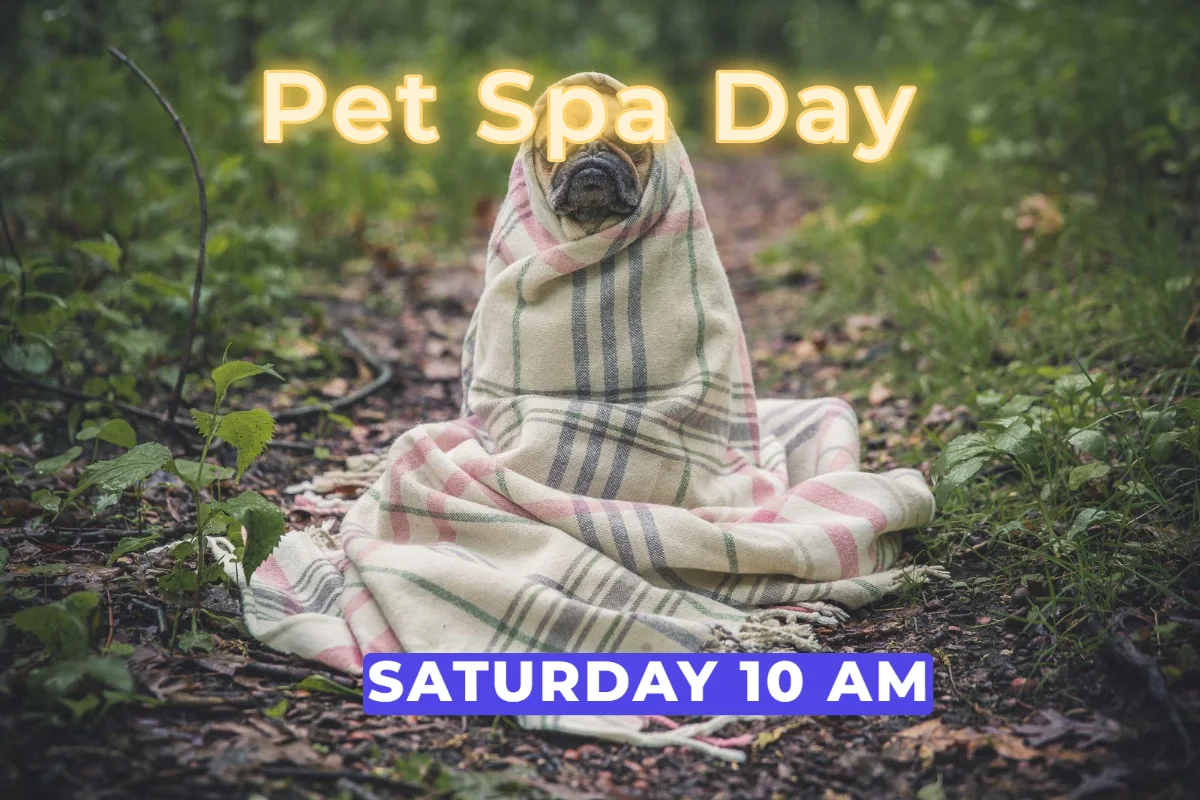
A designer sent you the poster as a .psd file. You only need to change the date, swap the photo and send a PNG to the printer - but you do not have Photoshop, and installing it for a five-minute job is not worth it. This guide shows how to open and edit a PSD file without Photoshop, right in your browser with Go Pixer, and how to save it back so the designer can keep working on it.
The file is opened on your own device - it is not uploaded - which matters for client and company files. No install, no sign-up.
How to edit a PSD without Photoshop in 7 steps
- Open the file. Click Open the PSD editor in Go Pixer above and choose your .psd (or drag it onto the page). Later, use File › Open image…. Open it on a computer: on a phone, a layered file opens as a single image.
- Read the message, if there is one. When the file uses Photoshop features that cannot be kept, Go Pixer lists them and asks: Open layers (you can edit each layer; the listed parts look different) or Open flattened (a single image that looks exactly as in Photoshop). To change text or photos, choose Open layers.
- Find your way in the Layers panel. Every layer is in place, with its name. Photoshop groups become folders. Click the eye to show or hide a layer, and change its Opacity and Blend mode. Masks, clipping masks and some layer styles (drop shadow, outer glow, stroke) open as editable layers too.
- Change the text. Text layers open looking exactly as Photoshop drew them. Double-click the text on the canvas with the Select / Move tool, or double-click its thumbnail in the Layers panel: it turns into editable text at the same place. Type the new words and change the font, size or color in Properties. If the file uses a font that is not on your computer, Go Pixer tells you and offers a close one (Edit with …); install the font and open the file again to keep the exact look.
- Swap a photo. Select the layer just under where the new photo should go, add Layer › New layer and choose File › Place image…: the photo is placed in that layer, and you can move it and resize it from a corner. If the old photo was clipped into a shape, make the new layer right above that shape and choose Layer › Create clipping mask. Then hide or delete the old photo layer.
- Check the result. Zoom in on the parts you changed, and compare the spacing and colors with the rest of the design.
- Save it the right way. To send it back to the designer, use File › Download as PSD. For the printer or the web, Export a PNG, JPG, WEBP or PDF. To keep working in Go Pixer later, also save it as a project with File › Save (Ctrl+S): layers, objects and text stay editable.
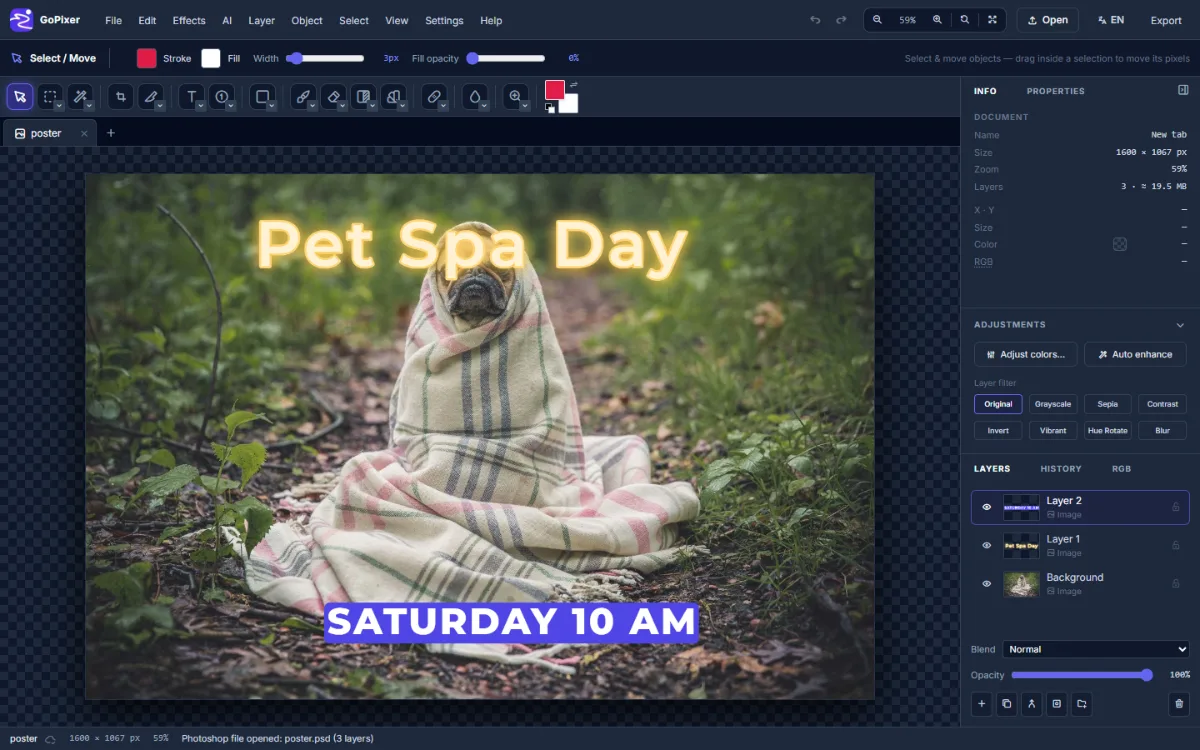
What is kept, exactly
- When opening: pixel layers in place with their names, hidden layers, opacity, blend modes (a mode Go Pixer does not have becomes Normal), groups as folders (nested groups are merged into the top one), layer masks, clipping masks, drop shadow / outer glow / stroke styles, and adjustment layers such as brightness/contrast, levels, curves, hue/saturation, exposure and vibrance. Text, shape and smart-object layers open as the pixels Photoshop saved; text layers become editable with a double-click.
- When saving as PSD: layers (objects become pixels), folders, opacity, blend modes, masks, clipping, layer styles and adjustment layers. Adjustments Photoshop has no layer for (temperature, tint, LUT) are left out, and Go Pixer tells you. Text is written as an image layer: it looks right, but cannot be retyped in Photoshop yet.
- Not supported: very large PSB documents and colors other than RGB (such as CMYK).
Tips and common mistakes
- Sending back a flat PNG when the designer needs layers. Ask what they want: a PSD to keep editing, or a PNG/PDF to publish.
- Editing the text, then sending the PSD back for more text changes. In the saved PSD the text is a picture. If more wording changes are coming, keep your Go Pixer project and make them there, or tell the designer which texts you changed.
- A file with very many layers. The Free plan edits up to 50 layers; for a bigger file, Go Pixer offers to open the flattened image saved in it. Plans with more layers are on the pricing page.
- A huge canvas. If the image is larger than the editor can handle, Go Pixer offers to open it smaller.
For a shorter overview of the PSD editor, read the PSD editor guide. Need to add a new line of text in the same style? See how to add text to a photo.
Photoshop files, without Photoshop
Open, double-click, retype, export: for the small changes that come up every week, a browser is all you need. Keep Photoshop for the designer, and keep the deadline for yourself.
Frequently asked questions
Can I open a PSD file without Photoshop for free?
Yes. Go Pixer opens .psd files in your browser with their layers, for free, with no install and no sign-up.
Can I edit the text in a PSD?
Yes. Double-click a text layer and it becomes editable text at the same place. When you save back to PSD, the text is written as an image layer.
Can I save my changes as a PSD again?
Yes, with File › Download as PSD: layers, folders, masks, clipping, blend modes, layer styles and adjustment layers are written.
Why does my PSD open as a single image?
On a phone, layered files open as a single image: open it on a computer. A file with more layers than your plan allows can also be opened flattened.
Is my PSD uploaded?
No, it is opened and edited in your browser on your own device.
Try it now - free
Nothing to install, no sign-up needed. Your photos stay on your computer.
Open the PSD editor in Go PixerMore free guides
Go Pixer vs Photoshop - What a Free Browser Editor Can Do (and What It Can't)
An honest comparison: layers and PSD, Object Selection, Content-Aware Move, Highlights / Shadows / Clarity / Dehaze, lens correction, Perspective Crop, RAW files and AI in a free browser editor.
Remove Background Online Free - No Upload, No Sign-Up
Remove the background of any photo for free, right in your browser. The AI runs on your computer: your photo is never uploaded. Download a transparent PNG.
Crop Image Online - Free, Fast, Square or 16:9
Crop an image online for free: square for Instagram, 16:9 for YouTube, or any size you like. Works in your browser, your photo is never uploaded.
Resize Image Online Free - Exact Pixels, Smaller Files
Resize an image online for free: set the width or height in pixels, keep the aspect ratio, and export a smaller JPG, PNG or WEBP. No upload, no sign-up.