Free Online Photo Editor with Layers - Masks, Blend Modes and PSD Files
A free online photo editor with real layers: masks, 16 blend modes, adjustment layers, layer styles. Open and save PSD files in the browser. No ads, no sign-up.
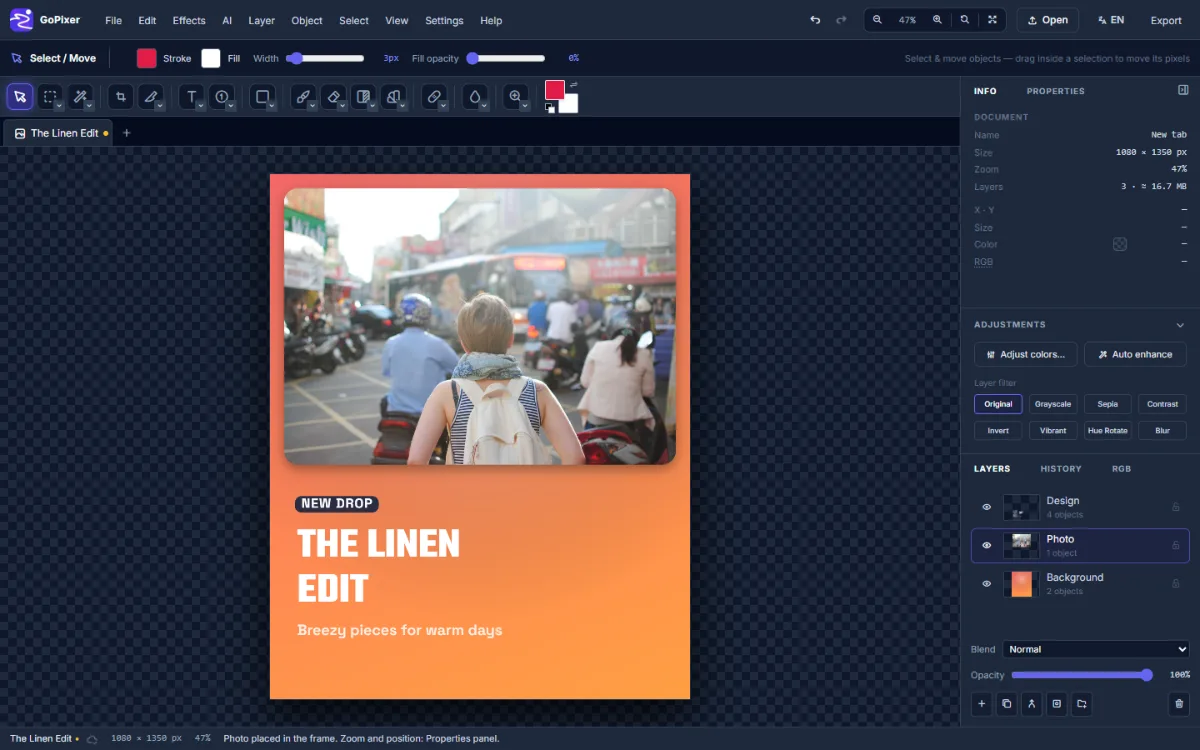
Many free online photo editors work on a single image: add a text or a sticker and it is baked into the photo, so changing it later means starting again. Layers are often reserved for a paid plan or a desktop app. Go Pixer is built around layers, like Photoshop - in your browser, free to start, with no ads and no sign-up - and it opens and saves .psd files.
Layers the way designers expect
- The Layers panel: add, duplicate, rename, hide, lock and reorder layers by dragging; set opacity and one of 16 blend modes (Multiply, Screen, Overlay, Soft light, Color…); select several layers and merge them (Ctrl+M); put layers into groups (folders).
- Layer masks: Layer › Add layer mask, then paint white to show and black to hide - nothing is deleted. Invert, Apply or Delete the mask from the same menu. The AI background remover uses a mask too.
- Adjustment layers: Layer › New adjustment layer changes the colors of every layer below without touching their pixels; it has its own mask, and a double-click changes its values.
- Clipping masks: Layer › Create clipping mask (Ctrl+Alt+G) fits a photo or a texture inside the shape of the layer below - for example, a photo inside big letters.
- Layer styles: Layer › Layer style… adds a drop shadow, outer glow or stroke (inner shadow is in Edit › Drop Shadow…). The effects are listed under the layer, each with its own eye, and Copy layer style / Paste layer style copies them to other layers.
- Editable objects: texts, shapes and elements stay editable on their layer; Layer › Objects to layers splits them into one layer each.
Open and save Photoshop files
Open a .psd with File › Open image… or drag it onto the page. Layers keep their places, with groups, masks, blend modes, clipping, layer styles, some adjustment layers - and text layers stay editable. If something could not be kept, Go Pixer tells you. Save with File › Download as PSD: layers, clipping, layer styles and adjustment layers are written for Photoshop.
Honest limits: text is saved to PSD as an image layer (not retypeable in Photoshop yet), very large PSB files and colors other than RGB (such as CMYK) are not supported, and Temperature, Tint and LUT adjustments are left out of the PSD (you are told). To keep everything editable for Go Pixer itself, use File › Save: a .pixedit project file that File › Open project… opens again.
What the Free plan includes
Layers, masks, adjustment layers, layer styles and PSD open / save are all in the Free plan. The plan sets limits: on Free, up to 50 layers per document, 15 undo steps, 3 documents open at once and exports up to 4096 px on the longest side - with no watermark. Pro raises these limits; the pricing page lists them. A PSD with more layers than your plan allows can still be opened as one flattened layer. Layers are for computers: on a phone the editor keeps a single layer.
How to try it
- Click Open the PSD editor in Go Pixer above and open a .psd - or any photo.
- Add a layer (Layer › New layer), try a blend mode, then Layer › Add layer mask and paint on it.
- Add Layer › New adjustment layer on top and watch every layer below change.
- Save with File › Download as PSD, or Export a PNG, JPG, WEBP or PDF.
Go Pixer vs typical online editors
- Layers: a full Layers panel with masks, groups, blend modes and adjustment layers on the Free plan, rather than a single image or layers locked behind a subscription.
- PSD: opens .psd files with their layers and saves back to .psd - not only a flat preview.
- Privacy: files are opened and edited in your browser, not uploaded - useful for client and company files.
- No ads, no sign-up, no watermark on exports.
- Not a full Photoshop replacement: no CMYK, no PSB, and PSD text is saved as an image.
Related guides
If you think in layers, Go Pixer lets you keep working that way - in any modern browser, on any computer.
Frequently asked questions
Is there a free online photo editor with layers?
Yes. Go Pixer has a full Layers panel - masks, groups, 16 blend modes, adjustment layers, clipping masks and layer styles - on the Free plan, with no sign-up.
Can I open and save PSD files?
Yes. File › Open image… opens a .psd with its layers, and File › Download as PSD saves one. Text is saved to PSD as an image layer, and CMYK or PSB files are not supported.
How many layers can I use?
On the Free plan, up to 50 layers per document; Pro allows more. The pricing page lists the limits of each plan.
Are adjustment layers non-destructive?
Yes. An adjustment layer changes the colors of the layers below without changing their pixels, has its own mask, and can be edited again with a double-click.
Can I use layers on my phone?
On a phone the editor keeps a single layer. Use a computer for layer work.
Try it now - free
Nothing to install, no sign-up needed. Your photos stay on your computer.
Open the PSD editor in Go PixerMore free guides
Go Pixer vs Photoshop - What a Free Browser Editor Can Do (and What It Can't)
An honest comparison: layers and PSD, Object Selection, Content-Aware Move, Highlights / Shadows / Clarity / Dehaze, lens correction, Perspective Crop, RAW files and AI in a free browser editor.
Remove Background Online Free - No Upload, No Sign-Up
Remove the background of any photo for free, right in your browser. The AI runs on your computer: your photo is never uploaded. Download a transparent PNG.
Crop Image Online - Free, Fast, Square or 16:9
Crop an image online for free: square for Instagram, 16:9 for YouTube, or any size you like. Works in your browser, your photo is never uploaded.
Resize Image Online Free - Exact Pixels, Smaller Files
Resize an image online for free: set the width or height in pixels, keep the aspect ratio, and export a smaller JPG, PNG or WEBP. No upload, no sign-up.