Remove Object from Photo Online - AI Eraser, No Upload
Remove an object from a photo online: select it, and the AI fills the spot with what should be behind it. People, signs, rocks. Runs in your browser.
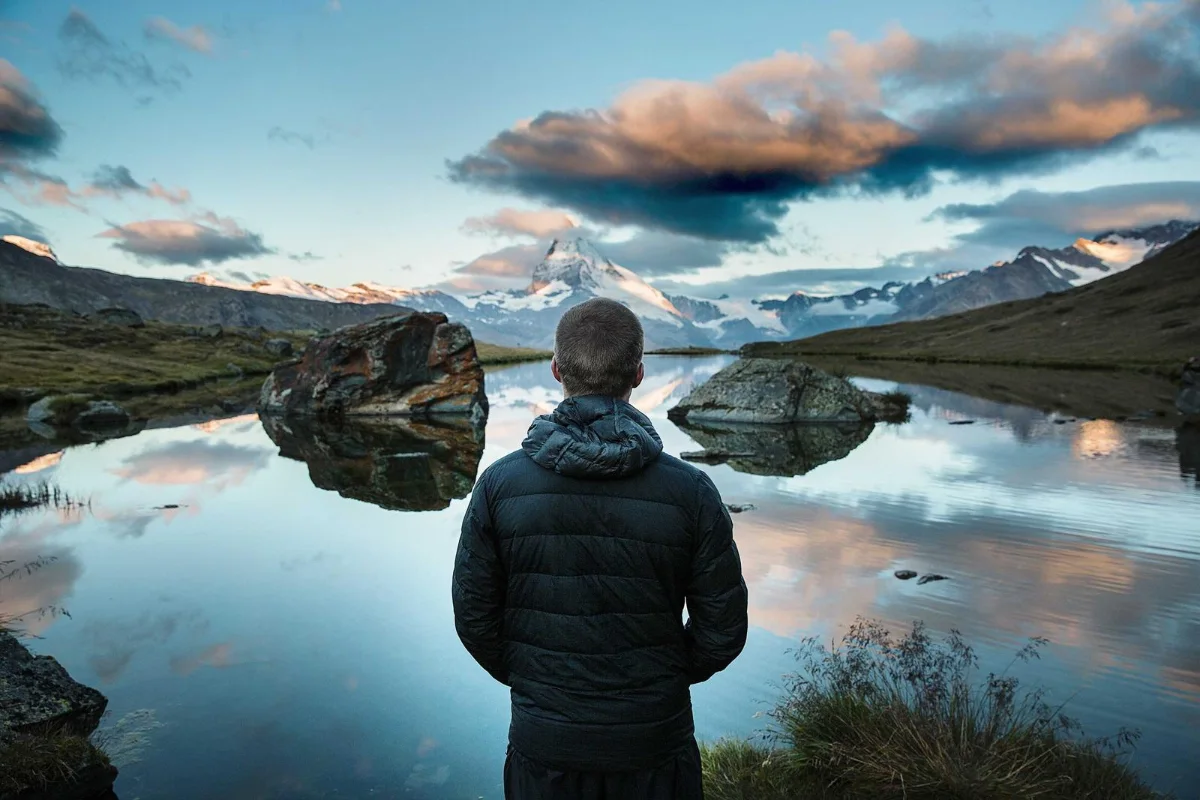
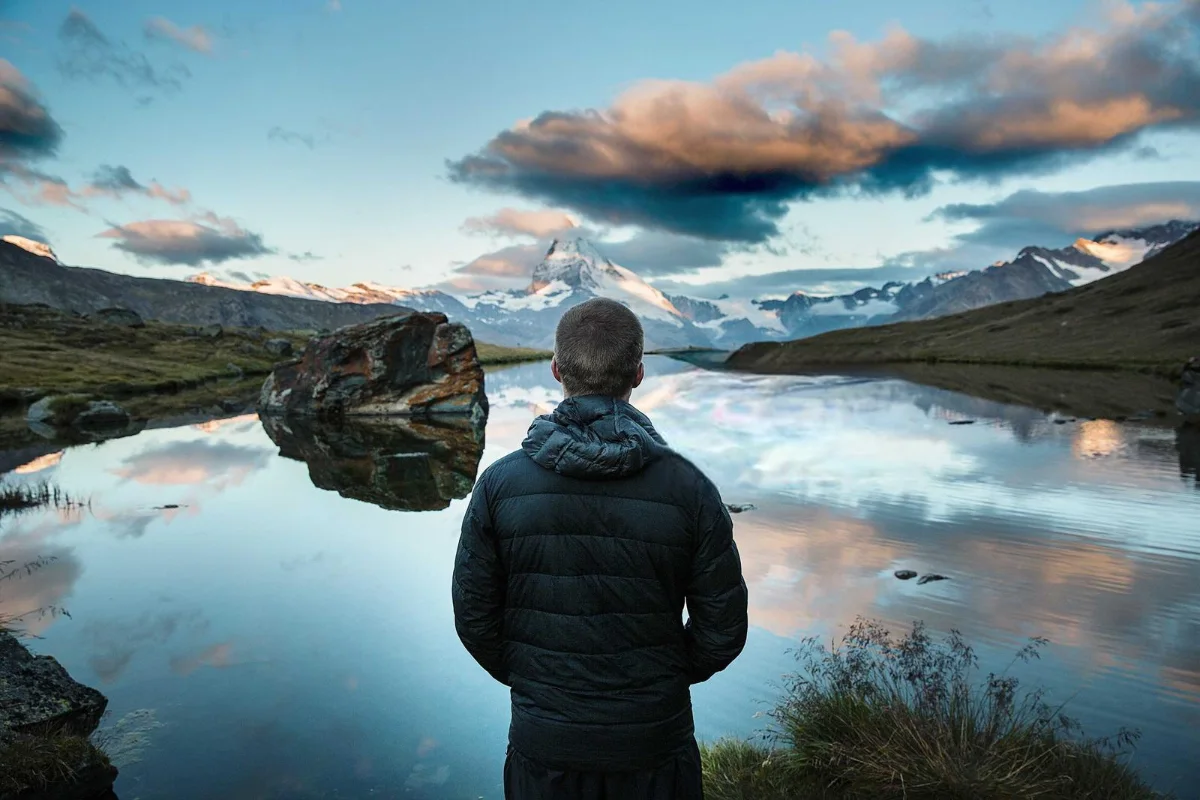
A stranger in your holiday shot, a sign on a wall, a rock in the middle of a perfect lake: one small thing can spoil a good picture. With Go Pixer you can remove an object from a photo online - select it, and the AI paints in what should be behind it. The AI model runs in your browser, so your photo is not uploaded.
How to remove an object in 3 steps
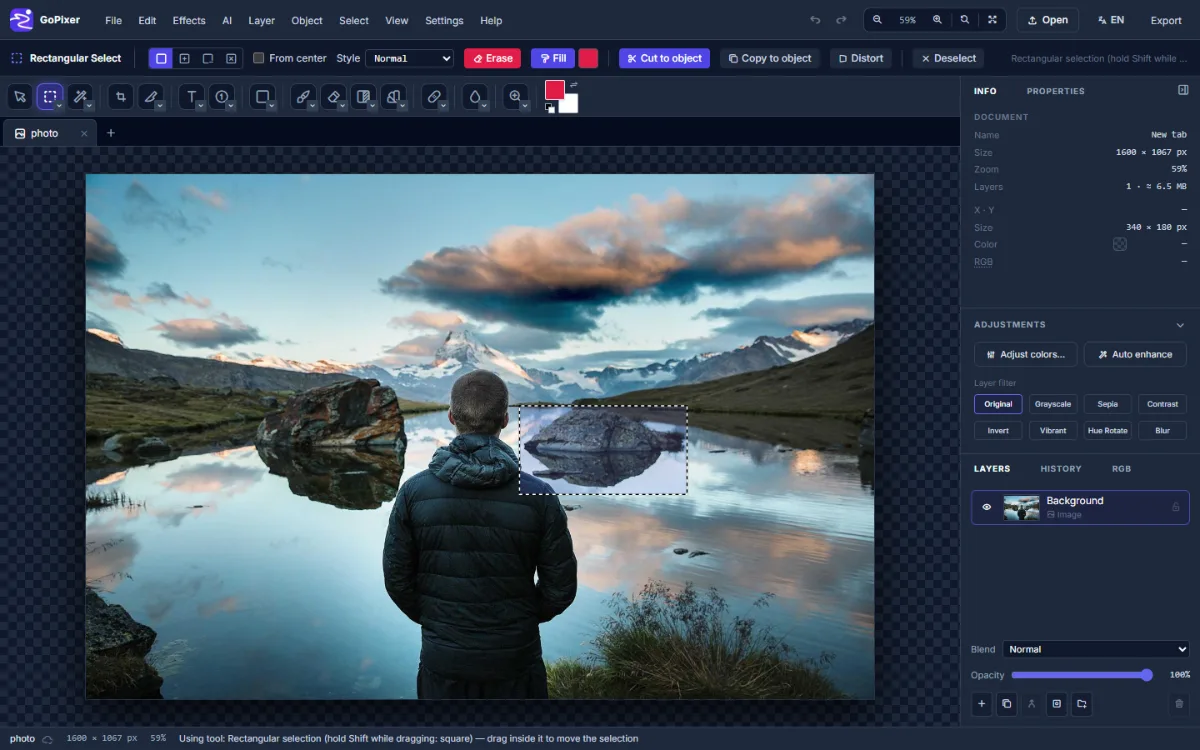
- Click Open the Object remover in Go Pixer above and open your photo. The Freehand Select tool is ready.
- Draw around the object you want gone. For a simple shape, Rectangular Select is quicker; AI › Select subject or AI › Magic Cut (click an object) can select it for you.
- Choose AI › Remove object (selection). The first time, the AI model is downloaded; after a few seconds the object is gone. Then click Export.
Tips for a clean result
- Select a little more than the object, including its shadow or reflection. Go Pixer already widens the area slightly so no outline stays; Select › Expand… adds more.
- Simple backgrounds work best: water, sky, grass, sand, a wall. Busy patterns and large areas are harder.
- Big object? Do it in parts. The AI fills best when the area is a fair part of what it sees, so remove a large object piece by piece.
- Touch up small leftovers with the Spot Healing brush (J): paint over the spot and it is replaced by what is around it.
- Not happy? Ctrl+Z undoes it in one step; select again and retry.
Private by design
Most AI erasers upload your photo to their servers. Go Pixer downloads the model once (your browser keeps it for next time) and does the work on your device - good for family photos and client work. Need to hide faces rather than erase them? See how to blur faces in a photo.
Frequently asked questions
Is the object remover free?
You can try Go Pixer without an account. Remove object is a heavier AI tool, so depending on the plan settings it may be part of Pro; the pricing page lists what each plan has.
Is my photo uploaded?
No. The AI runs in your browser on your own device. Only the AI model is downloaded, the first time you use it.
Why is Remove object greyed out?
It needs a selection: draw around the object with Freehand Select or Rectangular Select first, then choose AI › Remove object (selection).
The filled area looks smudged. What can I do?
Undo with Ctrl+Z, select a slightly larger area including the shadow, and try again. For a large object, remove it in smaller parts, then touch up with the Spot Healing brush (J).
Try it now - free
Nothing to install, no sign-up needed. Your photos stay on your computer.
Open the Object remover in Go PixerMore free guides

Go Pixer vs Photoshop - What a Free Browser Editor Can Do (and What It Can't)
An honest comparison: layers and PSD, Object Selection, Content-Aware Move, Highlights / Shadows / Clarity / Dehaze, lens correction, Perspective Crop, RAW files and AI in a free browser editor.
Remove Background Online Free - No Upload, No Sign-Up
Remove the background of any photo for free, right in your browser. The AI runs on your computer: your photo is never uploaded. Download a transparent PNG.
Crop Image Online - Free, Fast, Square or 16:9
Crop an image online for free: square for Instagram, 16:9 for YouTube, or any size you like. Works in your browser, your photo is never uploaded.

Resize Image Online Free - Exact Pixels, Smaller Files
Resize an image online for free: set the width or height in pixels, keep the aspect ratio, and export a smaller JPG, PNG or WEBP. No upload, no sign-up.