Private AI Photo Editor - AI Tools That Never Upload Your Photo
Remove backgrounds, blur faces, upscale and colorize with AI that runs in your browser. Your photo stays on your device; works offline once the model is saved.
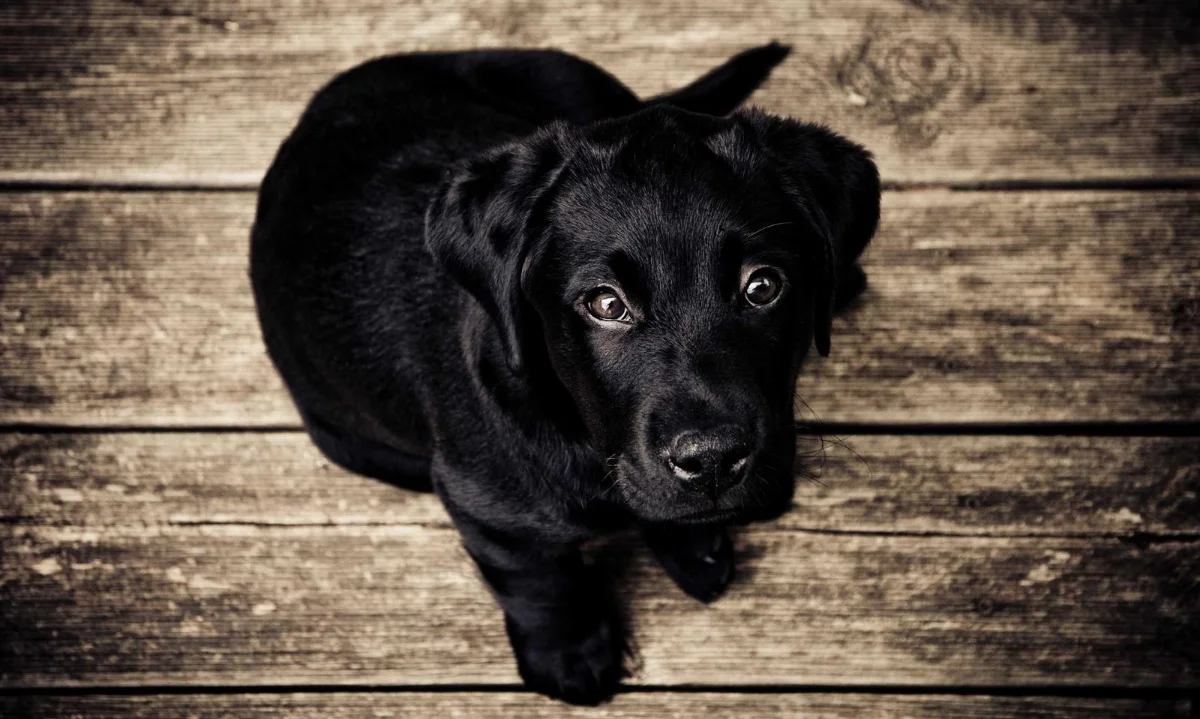
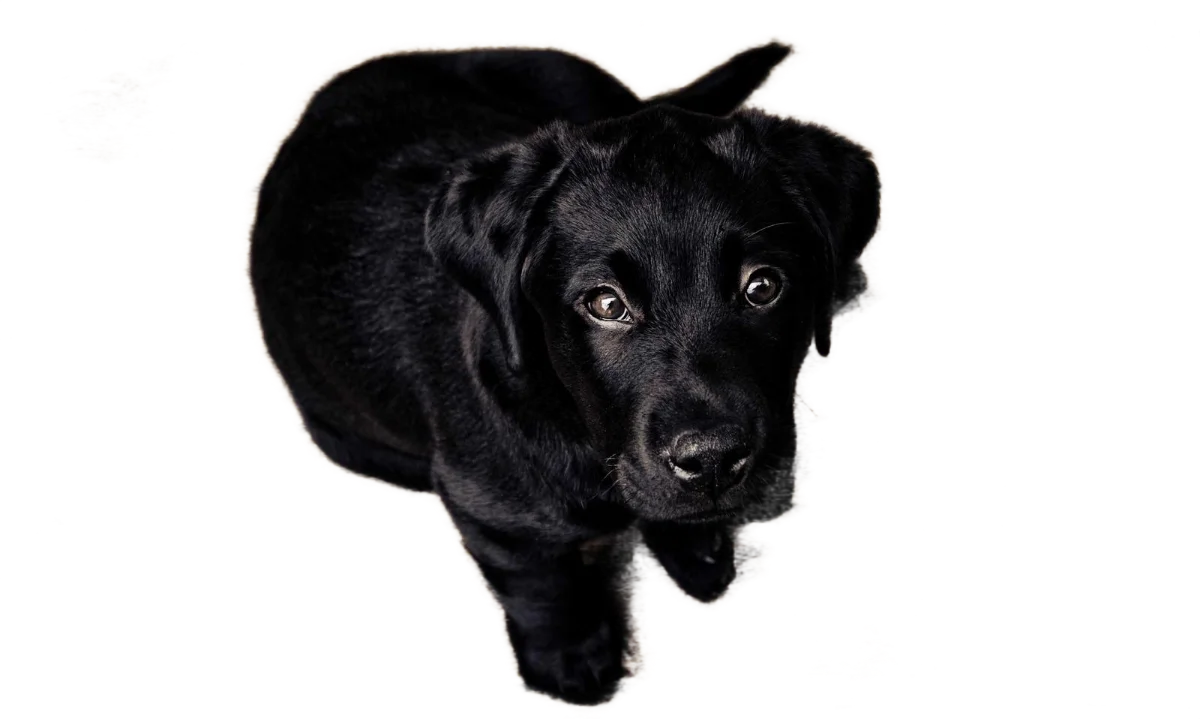
Most online photo editors with AI work the same way: your photo is uploaded to their servers, processed there and sent back. That is fine for a holiday snapshot. It is less fine for an ID card, a scanned contract, a client's product shots under NDA or photos of your children. Go Pixer takes a different route: its AI tools run in your browser, on your own computer or phone. The AI model is downloaded once; the photo itself stays on your device.
The AI tools that run on your device
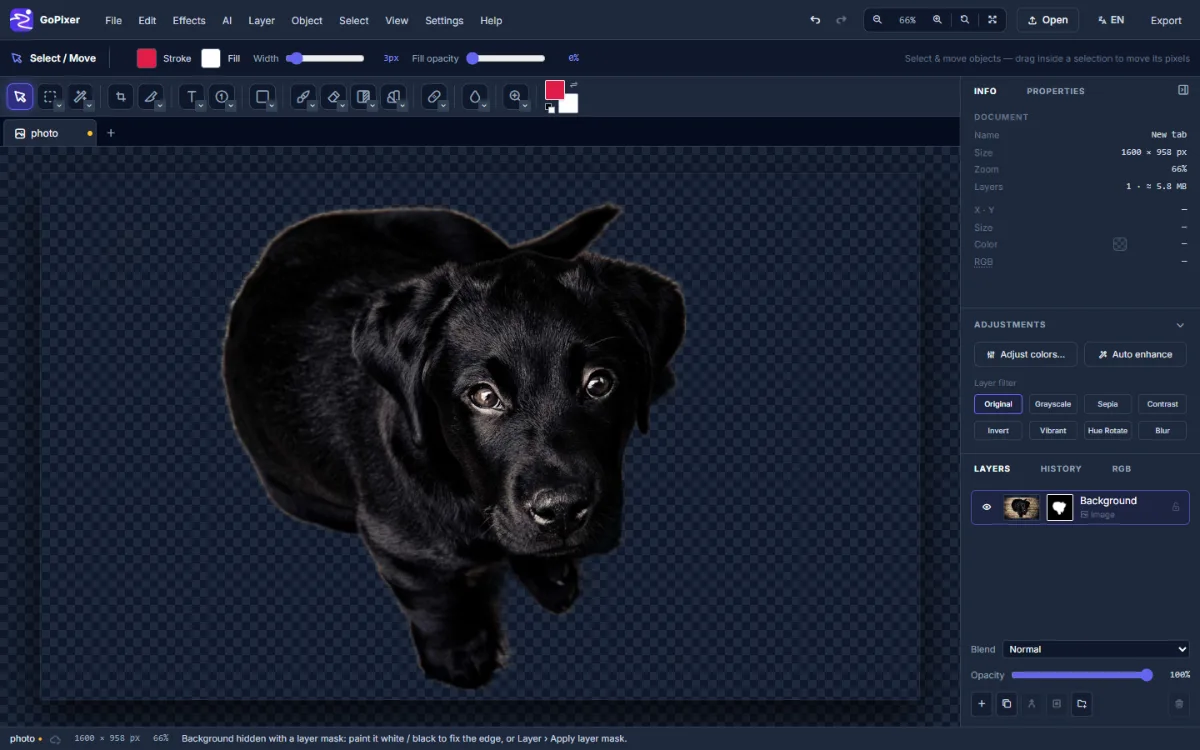
- AI › Remove background and AI › Remove background (people) - the background is hidden with a layer mask you can touch up.
- AI › Select subject, Select by content… and Magic Cut (click an object) - selections made by AI.
- AI › Blur faces - finds every face and covers it.
- AI › Hide sensitive info… and Copy text from image - the text in a picture is read (OCR) on your device.
- The heavier tools: Upscale ×2 / ×4, Remove object (selection), Spot healing brush, Colorize photo…, Expand with AI…, Replace sky…, Portrait retouch…, Lens blur… and Relight… - they run on your device too.
How it works - and the one exception
The first time you use a tool, its model is downloaded - from a few MB up to about 135 MB for the colorizing model - and your browser keeps it. Next time the tool starts at once, and once the model is saved it works without an internet connection. AI › AI settings… lists the downloaded models: delete one to free space, or use Download now (to use it offline) before a trip. It also shows whether the AI runs on your graphics card (WebGPU) or on the processor.
The editor tells the Go Pixer server which tool you used, to check what your plan includes - never the picture. The one exception is AI › Generative fill…: painting new content from a text description needs a model far too large for a browser, so this tool sends the selected area and the picture around it to OpenAI or Google, with your own API key, and only after you tick that you agree. The key stays in your browser and goes only to that service, which charges your account. If you do not use Generative fill, no photo leaves your device.
When on-device AI matters
- ID cards, passports, invoices: find and cover numbers with AI › Hide sensitive info… before you send a copy.
- Client and company files: cut out products or retouch photos you are not allowed to share with a third party.
- People who did not agree to be shown: blur faces before posting - without uploading the very photo you are protecting.
- No connection: on a train or a plane, the tools whose models are saved keep working.
How to try it
- Click Open the Background remover in Go Pixer above and open a photo - no sign-up needed.
- The background is removed on your device. Then try AI › Blur faces or AI › Select subject.
- Want proof? Once the model is downloaded, switch off Wi-Fi and run the tool again: it still works.
- Click Export to save the result - PNG or WEBP keep transparency, with no watermark.
Go Pixer vs typical online editors
- Where the AI runs: on your device in Go Pixer; on the provider's servers in most online editors, which means uploading your photo.
- Offline: Go Pixer's AI tools work without internet once their model is saved; server-based AI needs a connection for every photo.
- Speed: the first use waits for the model download, and heavy tools depend on your device - an older phone is slower than a desktop. After that there is no upload or download per photo.
- Account: none needed to start. Some tools - currently the heavier AI tools and Generative fill - are part of Pro; the pricing page lists them.
- Generative fill: optional, with your own API key, and the editor says plainly that the picture is sent before anything leaves.
Related guides
- Remove background online free
- Blur faces in a photo online
- Upscale an image with AI
- Remove an object from a photo
- Colorize a black and white photo
Privacy should not be a premium feature. With Go Pixer the AI comes to your photo - not the other way round.
Frequently asked questions
Are my photos uploaded when I use the AI tools?
No. The AI tools run in your browser on your own device; only the AI model is downloaded the first time. The one exception is Generative fill, which sends the selected area to OpenAI or Google with your own API key, after you agree.
Do the AI tools work offline?
Yes, once a tool's model has been downloaded and kept by your browser. AI › AI settings… shows the saved models and can download one ahead of time.
Are the AI tools free?
You can start without an account, and tools such as Remove background and Blur faces are available on the Free plan. Some heavier AI tools are part of Pro; the pricing page lists them.
Why is a tool slow the first time?
Its model is being downloaded, from a few MB up to about 135 MB. After that it starts at once. Heavy tools are also faster on a computer with a graphics card the browser can use (WebGPU).
How do I free up space taken by the models?
Open AI › AI settings… and delete the models you do not need. They are downloaded again the next time you use the tool.
Try it now - free
Nothing to install, no sign-up needed. Your photos stay on your computer.
Open the Background remover in Go PixerMore free guides
Go Pixer vs Photoshop - What a Free Browser Editor Can Do (and What It Can't)
An honest comparison: layers and PSD, Object Selection, Content-Aware Move, Highlights / Shadows / Clarity / Dehaze, lens correction, Perspective Crop, RAW files and AI in a free browser editor.
Crop Image Online - Free, Fast, Square or 16:9
Crop an image online for free: square for Instagram, 16:9 for YouTube, or any size you like. Works in your browser, your photo is never uploaded.
Resize Image Online Free - Exact Pixels, Smaller Files
Resize an image online for free: set the width or height in pixels, keep the aspect ratio, and export a smaller JPG, PNG or WEBP. No upload, no sign-up.

Add Text to Photo Online Free - 110 Ready-Made Text Styles
Add text to a photo online for free: 277 Google fonts, gradient, outline, 3D and neon text styles you can edit. In your browser, no upload, no watermark.