How to Make a YouTube Thumbnail in 1 Minute (Step by Step)
A 60-second routine for YouTube thumbnails: pick a 1280 × 720 template, drop in a photo, type 3 words, export a JPG. Free, no sign-up, no watermark.
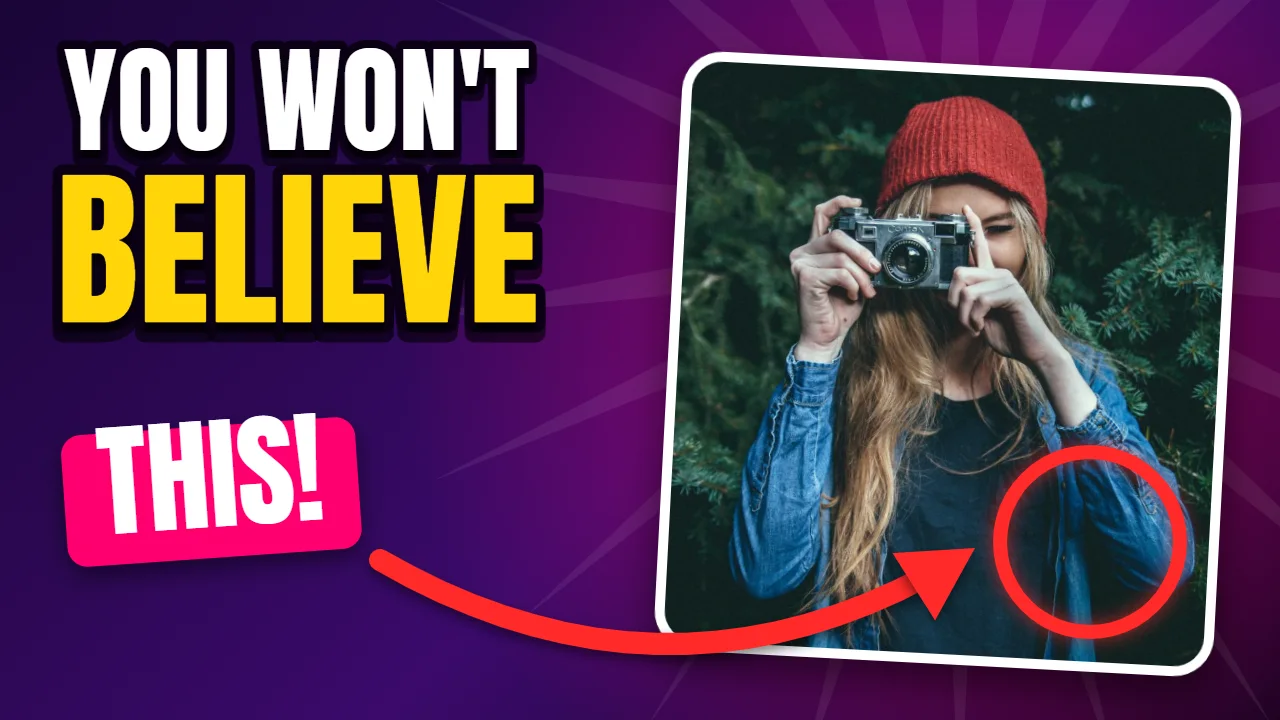
The video is edited, the title is written, and now YouTube asks for a thumbnail. You could spend an hour in a design app - or you can have a clean, clickable thumbnail in about one minute. Here is the routine, with a rough timer for each step, using the free templates in Go Pixer. They are already at the size YouTube recommends, 1280 × 720 px, so there is nothing to set up.
Go Pixer runs in your browser: no install, no sign-up, and your photo is placed into the template on your own device, not uploaded.
The 1-minute routine
- 0:00 - Open the templates. Click Open the YouTube thumbnail maker in Go Pixer above. The template library opens on YouTube Thumbnail. Type your topic in the search box (for example recipe, gaming, podcast, review) to narrow the list. Templates with a gold crown are part of Pro; the others are free.
- 0:10 - Pick one. Click a design: it opens in a new tab, ready to edit at 1280 × 720. Do not hunt for the perfect one - colors, fonts and photos can all be changed.
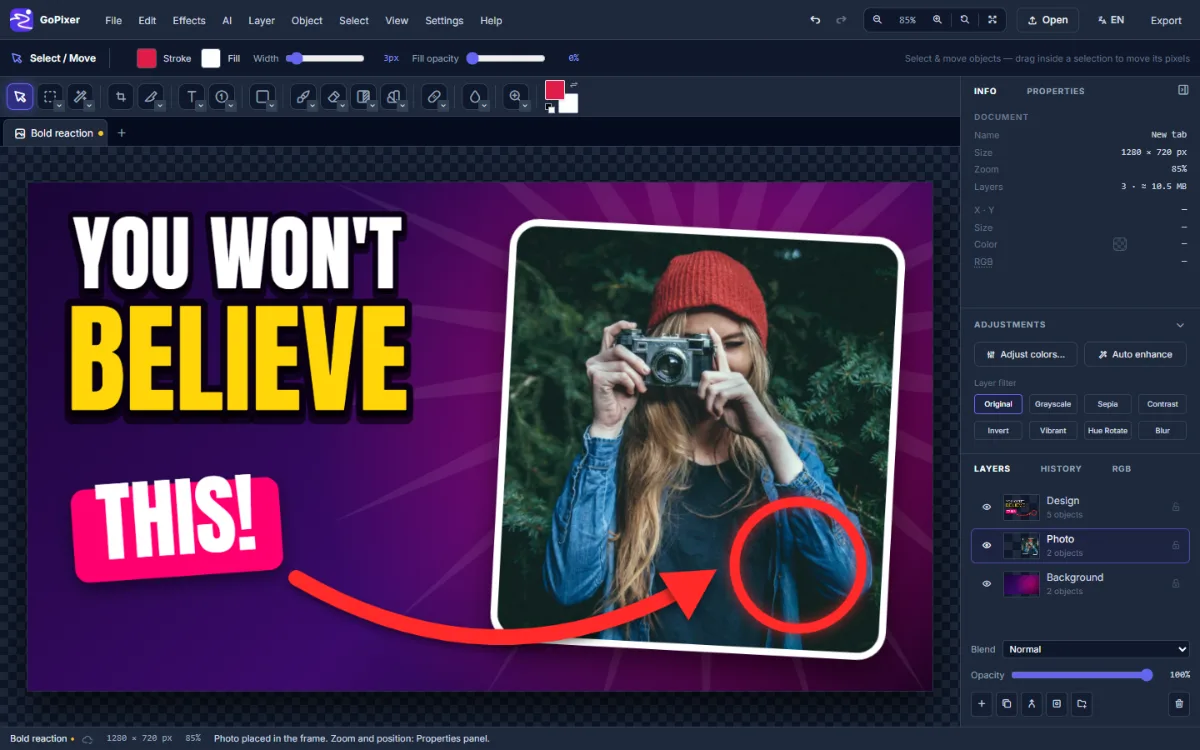
- 0:20 - Drop in your photo. Drag a still from your video, or a photo of yourself, onto the Drop a photo here frame (or double-click the frame to choose a file). The photo fills the frame; adjust its Zoom and position in Properties so the face or the subject is big and centered.
- 0:35 - Write the title. Double-click the title text and type 2 to 5 words - not the video title, but the hook: “I quit sugar”, “$5 vs $500”, “Easy 10-min pasta”. Change the color or the outline in Properties if it does not stand out.
- 0:45 - Check it at phone size. Zoom out with View › Zoom out until the thumbnail is about as small as in the YouTube app. Can you still read the words? Is the face clear? If yes, you are done.
- 0:50 - Export. Click Export, choose JPG and keep Original size (the template is already 1280 × 720; the YouTube thumbnail size is there too). Set Max file size so the file stays under the upload limit of YouTube, then download.
- 1:00 - Upload. In YouTube Studio, open your video's details and upload the file as its thumbnail.
Make the next one even faster
- Save the design as a project. Use File › Save (Ctrl+S): layers, objects and text stay editable. For the next video, open it with File › Open project…, swap the photo and the words - and your channel gets a consistent look.
- One style per series. Same colors and layout for a series, only the title and photo change. Viewers recognise your videos at a glance.
- Ready-made text styles. With the Text tool, the Text presets panel has bold styles (3D, gradient, neon…) that read well on busy photos.
- Cut yourself out. A face in front of the design gets attention. Remove the background of your photo first, then place it over the template.
Common mistakes
- Too many words. The title is already under the thumbnail. Use the picture for the hook, not for a sentence.
- Text in the bottom-right corner. YouTube shows the video length there and it covers your text.
- Low contrast. Light text on a light photo disappears on a phone. Add an outline, or a dark shape behind the words.
- A blurry frame grab. Pick a sharp still, or try AI › Upscale ×2 on a small photo (some AI tools are part of Pro; the pricing page lists them).
- A thumbnail that promises something the video does not show. Viewers leave early, and that hurts more than a plain thumbnail.
For more about the templates themselves - sizes, styles, the photo frame - read the YouTube thumbnail maker guide. Want a bigger title effect? See how to add text to a photo.
One minute, every video
Template, photo, three words, export. Once it is a routine, a good thumbnail is no longer the job you leave for last - it is the minute before you click Publish.
Frequently asked questions
What size should a YouTube thumbnail be?
YouTube recommends 1280 × 720 px (16:9). The YouTube Thumbnail templates in Go Pixer are made at exactly that size, and Export also has a YouTube thumbnail size.
Can I really make a thumbnail in one minute?
Yes, if you start from a template: choose a design, drop in your photo, type a few words and export. Saving it as a project makes the next one even faster.
Is it free? Is there a watermark?
Templates without a gold crown are free to use and export, with no watermark and no sign-up. Templates with a gold crown are part of Pro.
Should I export JPG or PNG?
JPG is smaller and fine for photos. If the file is too large, set Max file size in Export.
Is my photo uploaded?
No. The template is downloaded to your browser and your photo is placed into it on your own device.
Try it now - free
Nothing to install, no sign-up needed. Your photos stay on your computer.
Open the YouTube thumbnail maker in Go PixerMore free guides
Go Pixer vs Photoshop - What a Free Browser Editor Can Do (and What It Can't)
An honest comparison: layers and PSD, Object Selection, Content-Aware Move, Highlights / Shadows / Clarity / Dehaze, lens correction, Perspective Crop, RAW files and AI in a free browser editor.
Remove Background Online Free - No Upload, No Sign-Up
Remove the background of any photo for free, right in your browser. The AI runs on your computer: your photo is never uploaded. Download a transparent PNG.
Crop Image Online - Free, Fast, Square or 16:9
Crop an image online for free: square for Instagram, 16:9 for YouTube, or any size you like. Works in your browser, your photo is never uploaded.
Resize Image Online Free - Exact Pixels, Smaller Files
Resize an image online for free: set the width or height in pixels, keep the aspect ratio, and export a smaller JPG, PNG or WEBP. No upload, no sign-up.