Design Multi-Page Documents and Presentations Online - Export PDF and PPTX
Make brochures, menus and slide decks with several pages, add animations, present full screen, and export PDF, PowerPoint (PPTX) or images - in your browser.
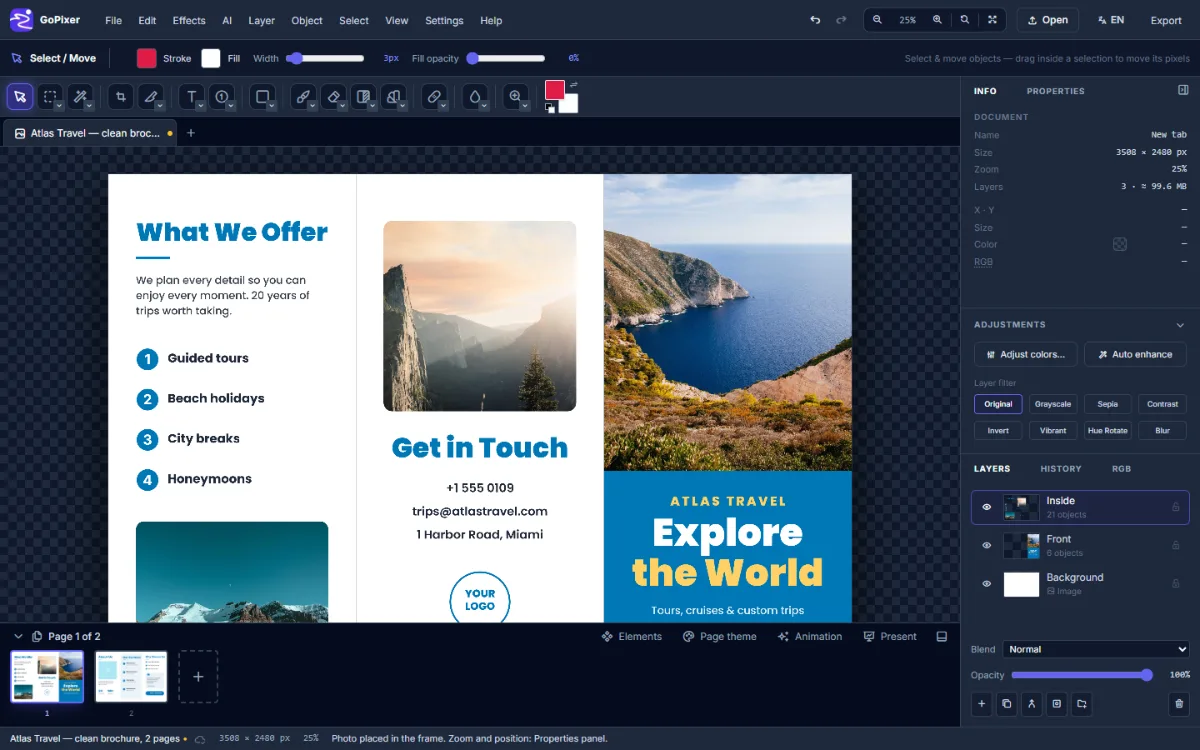
A photo editor usually makes one picture at a time. When you need a two-page menu, a brochure or a short slide deck, you switch to another tool - and copy your edited photos across. Go Pixer keeps it in one place: documents with several pages, each page with the full editor (layers, AI tools, text), plus animations, a present mode and PDF / PowerPoint export.
Pages in one document
- Start with Create Page on the start screen, or File › Create page…, and choose a size (screen, social or print).
- The page strip shows every page: + adds one, right-click to duplicate, delete or move a page, drag to reorder. Page Up / Page Down moves between pages, Ctrl+Alt+N adds one, and View › Go to page… jumps to a number.
- Pages can have different sizes, and each page keeps its own undo history.
- Elements (button on the page strip) adds ready-made blocks: boxes, steps, price lists, key figures, page numbers.
- View › Page theme… sets the colors, heading and body fonts and the page background (plain or gradient) for every page at once. Objects linked to a theme color or font follow when you switch themes.
- The Template library includes two-page designs, such as tri-fold brochures and restaurant menus, that open with their pages.
Present, with animations
- View › Present from the beginning (F5) or Present from this page (Shift+F5) shows the pages full screen. Move with the arrow keys, Space, a click or a swipe; the bar at the bottom opens a grid of all pages, chooses a Transition and turns on Auto advance.
- The Animation panel adds entrance, emphasis and exit animations to texts, pictures and elements, set to start on click, with the previous one or after it, with a duration and delay - and a Preview.
- Texts can appear by letter, word or line (Typewriter, for example); elements can appear part by part, and key figures can count up.
- Each page can have its own page transition - fade, slide, zoom, cover, wipe, flip, fade through black, circle.
Export: PDF, PowerPoint, images
- Export asks for All pages or This page. All pages as PDF gives one PDF page per page; as JPG, PNG or WEBP it gives a ZIP with one picture per page.
- PPTX makes one slide per page, with your animations and transitions turned into the closest PowerPoint ones. Each slide is built from pictures, so the words cannot be retyped in PowerPoint - edit them in Go Pixer and export again.
- A print document gets a print PDF with bleed and crop marks (up to 150 DPI on Free, higher on Pro).
- File › Save keeps all pages, themes and animations in one .pixedit project file.
How to try it
- Click Open the Template library in Go Pixer above and pick a two-page brochure or menu - or choose Create Page on the start screen.
- Add a page with +, try View › Page theme…, then add a few animations in the Animation panel.
- Press F5 to present.
- Export all pages as PDF or PPTX.
Go Pixer vs typical online design tools
- One editor: retouch photos with layers and AI and lay out the pages in the same document, instead of moving files between a photo editor and a slide tool.
- Export choices: multi-page PDF, PPTX with animations, or a ZIP of images - with no watermark.
- Private and offline: documents are made in your browser, not uploaded, and the editor keeps working without internet once opened.
- Free to start, no sign-up: some tools are part of Pro; the pricing page lists them.
- Limits: PPTX slides are pictures rather than editable text, and there is no video export yet.
Related guides
From a brochure to a short pitch deck, the pages, the photos and the slides stay in one editor.
Frequently asked questions
Can I make a multi-page document in Go Pixer?
Yes. Choose Create Page on the start screen or File › Create page…, then add pages with + on the page strip. All pages are saved together in one .pixedit file.
Can I export a presentation to PowerPoint?
Yes. Export › PPTX makes one slide per page, with animations and transitions turned into the closest PowerPoint ones. Each slide is built from pictures, so the text is not editable in PowerPoint.
How do I export all pages as one PDF?
In Export, choose All pages and PDF: each page becomes one PDF page.
Can I present directly from the browser?
Yes. View › Present from the beginning (F5) shows the pages full screen with their animations and transitions.
What is a page theme?
A set of colors, fonts and a page background applied to every page at once (View › Page theme…). Objects linked to the theme change with it.
Try it now - free
Nothing to install, no sign-up needed. Your photos stay on your computer.
Open the Template library in Go PixerMore free guides
Go Pixer vs Photoshop - What a Free Browser Editor Can Do (and What It Can't)
An honest comparison: layers and PSD, Object Selection, Content-Aware Move, Highlights / Shadows / Clarity / Dehaze, lens correction, Perspective Crop, RAW files and AI in a free browser editor.
Remove Background Online Free - No Upload, No Sign-Up
Remove the background of any photo for free, right in your browser. The AI runs on your computer: your photo is never uploaded. Download a transparent PNG.
Crop Image Online - Free, Fast, Square or 16:9
Crop an image online for free: square for Instagram, 16:9 for YouTube, or any size you like. Works in your browser, your photo is never uploaded.

Resize Image Online Free - Exact Pixels, Smaller Files
Resize an image online for free: set the width or height in pixels, keep the aspect ratio, and export a smaller JPG, PNG or WEBP. No upload, no sign-up.